Access recruitment and Staff Management tools via your portal.
There are 3 types of role-based permissions in the Tes Portal (your portal) that control what you can access as an Administrator, Staff member or Agent.
An Administrator must invite you to your portal and assign permissions before you can access your account.
Log in to your portal
To set up your account and/or log into your portal, follow these steps:
- Accept your invitation: To log in for the first time, use the link sent to your email (from noreply@tes.com) to accept your invite and set your password.
- Log in: Go to tes.com and select School Portal, then enter your account details.
There's no need to create a new account or log in using your Schrole details.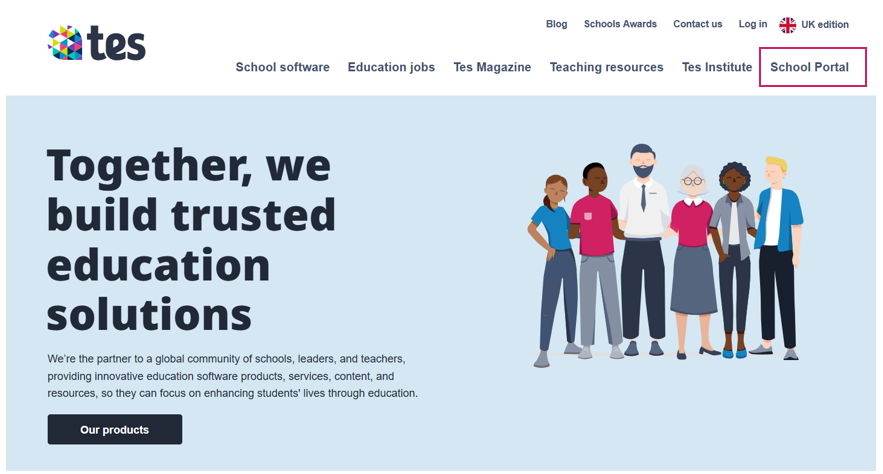
- Choose school: If you have access to multiple school portals, select which school to access.
- Open your Application Tracking System: You’ll see all products available in your Staff Management subscription (e.g. Administration, Recruitment, Training, Wellbeing). To log in to your system, select Book a new job (under Recruitment ATS).
If you can’t see Staff Management options after logging in or suspect you don’t have the right access permissions, contact us to resolve account issues promptly.
Once you’re in the portal, you can start posting job vacancies to kick off your recruitment process.
Help and support
Can’t find the answer you’re looking for? We’re here to support you every step of the way.
Help Centre | Contact us |
Our knowledge base has everything you need to know about using Staff Management, including videos, help guides and more.
| Contact us anytime from Mon to Fri, 8:00am-17:00 (UK time).
Call: +44 020 3194 3050 |
Was this article helpful?
That’s Great!
Thank you for your feedback
Sorry! We couldn't be helpful
Thank you for your feedback
Feedback sent
We appreciate your effort and will try to fix the article