Assign the right permissions to users based on their recruitment role
If you’re set up as a super user in your Application Tracking System (the system), you can assign new or existing users’ different roles. Roles control what users have permission to access.
To complete this task, the user must already have an account set up in the Tes Portal. If you want to manage permissions for Tes Magazine, Tes Pulse or the CPD platform, you’ll need to assign permissions in the Tes Portal (not Schrole Connect).
On this page
Roles and access permissions
Each role level has a different level of access permissions, and they’re separate to permissions set in the Tes Portal.
Users will need to log out before permission updates take effect and it may take a few minutes.
Role | Access permissions |
Super user | · Receive notifications of applicants · Move applicants through the Vacancy Pathway · Communicate with applicants · Create and edit job vacancies · Set user permissions · Edit school profile · Turn anonymisation on or off |
User | · Receive notifications of applicants · Move applicants through the Vacancy Pathway · Communicate with applicants · Create and edit job vacancies |
Support user | · Edit school career page · Turn anonymisation on or off |
Limited user | Can only access functions for the specific jobs they have been invited to view. · Receive notifications of applicants · Move applicants through the Vacancy Pathway · Communicate with applicants · Create and edit job vacancies |
Agency user | We recommend this permission is only used for third parties. · Create and edit job vacancies |
Comparison with Tes Portal roles
There are different roles and permissions you can assign users in your Application Tracking System and the Tes Portal. Resetting one will not update the other.
Application Tracking System role | Tes Portal role |
Super user | Administrator |
User | Recruitment toolkit |
Support user | Staff |
Limited user | Reviewer |
Agency user | Agent |
Add new users
To add new users and assign them permission roles in your system:
- They must have a Tes Portal account. If they don’t, complete this step first so they can log in via the Portal.
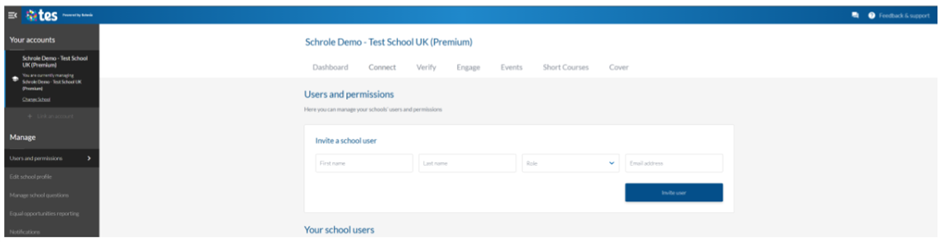
- Go to Users and Permissions (under Manage).
- Under Invite a school user, enter the new user’s first and last name, email address and the role (to define their access permissions).
- When you’re ready to send an email invite for the user to accept and login, select Invite user.
Edit user permissions
To edit an existing users’ permissions in your system:
- Go to Users and Permissions (under Manage).
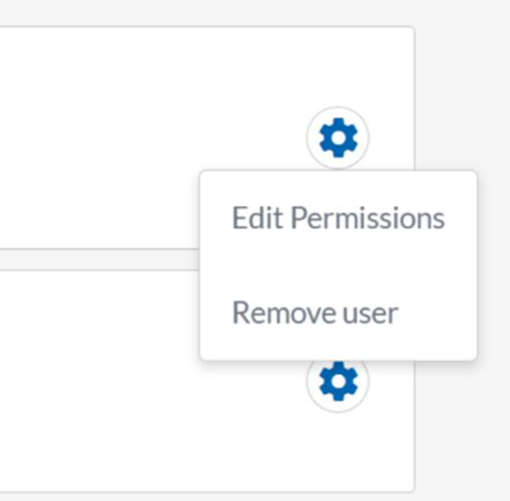
- Under Your school users, find the user whose permissions you want to update and select the settings (cog icon) > Edit Permissions.
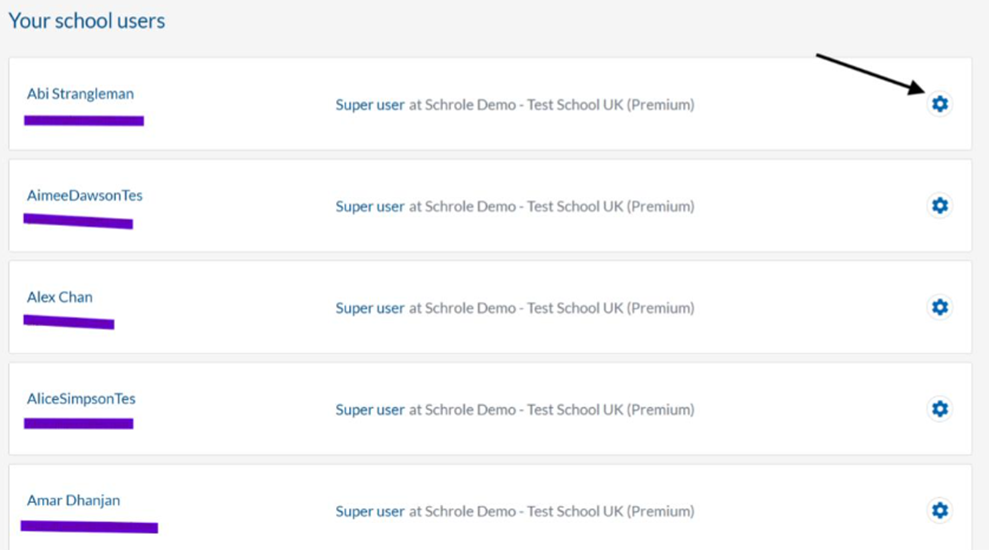
- Select their new Role from the dropdown options, then Save.
Remove users
To remove existing users (and their access permissions) from your system:
- Go to Users and Permissions (under Manage).
- Under Your school users, find the user whose permissions you want to update and select the settings (cog icon) > Remove user.
Was this article helpful?
That’s Great!
Thank you for your feedback
Sorry! We couldn't be helpful
Thank you for your feedback
Feedback sent
We appreciate your effort and will try to fix the article