This guide will show you how to send automated communications.
Automated emails are now part of Tes Staff Management.
Available at all Subscription levels.
Send personalised email to successful candidates
- From your Tes Staff Management ATS, press Connect, navigate to and select the vacancy you want to review applications for
- Identify the candidate you want to contact
- Select the Vacancy Pathway in the Move Applicant to… right-hand-side dropdown
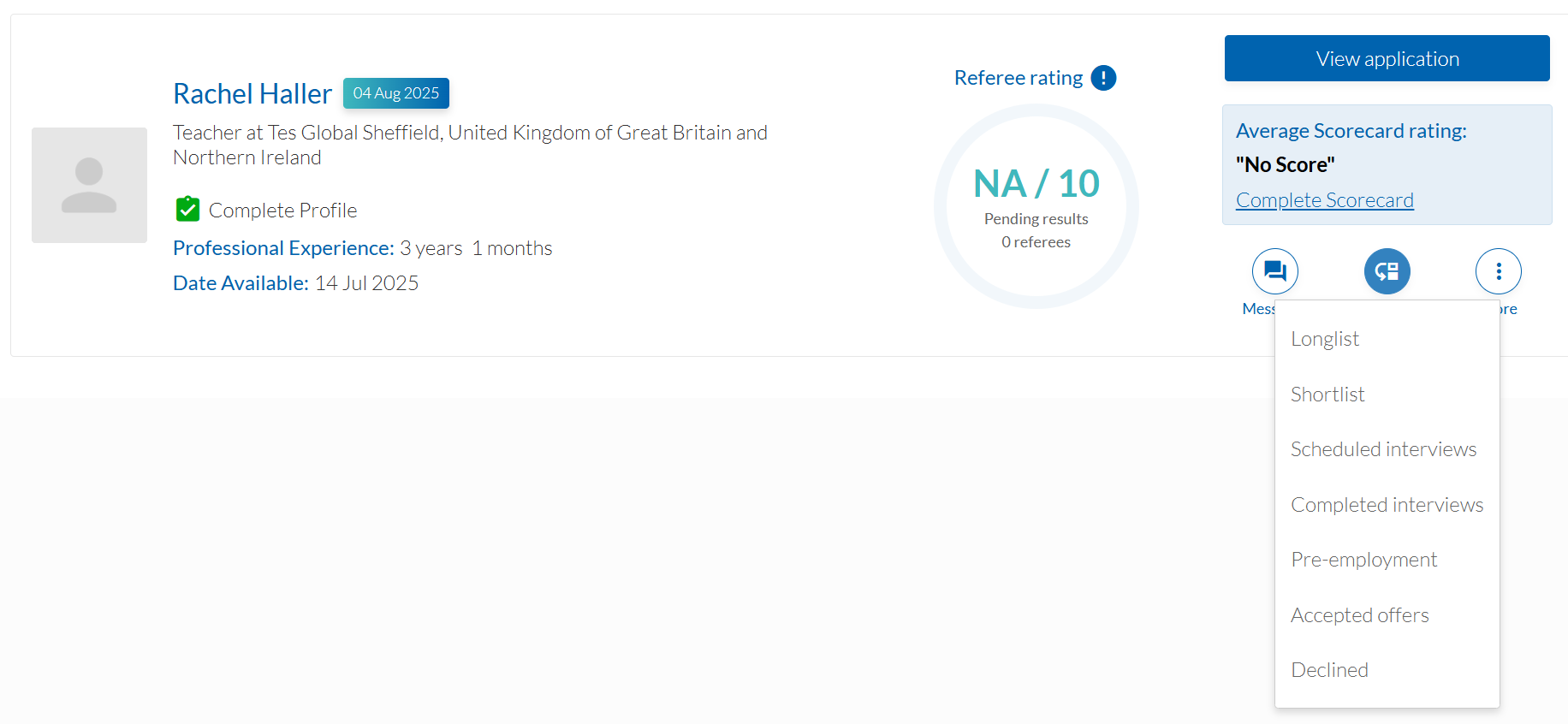
- Select Scheduled Interviews, Accepted offers or Declined to send an email
Send a personalised email to unsuccessful candidates
- From your Tes Staff Management ATS, press Connect, navigate to and select the vacancy you want to review applications for
- Identify the candidate you want to communicate with
- Select ‘Decline this candidate’
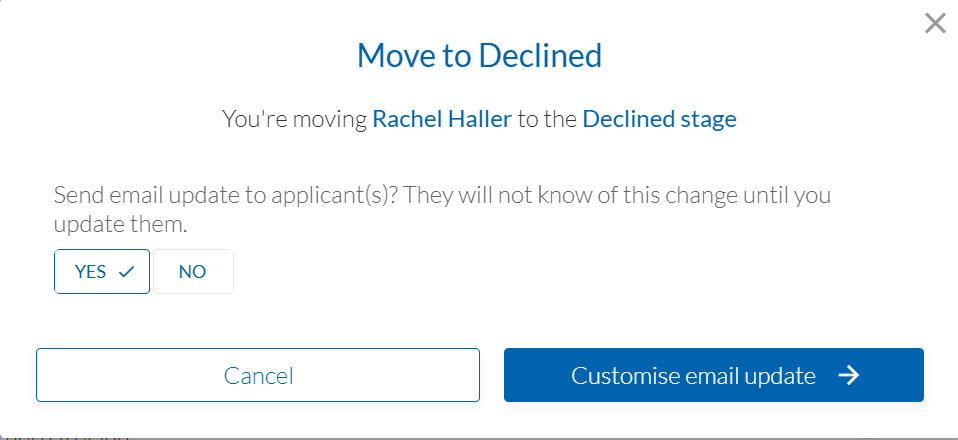
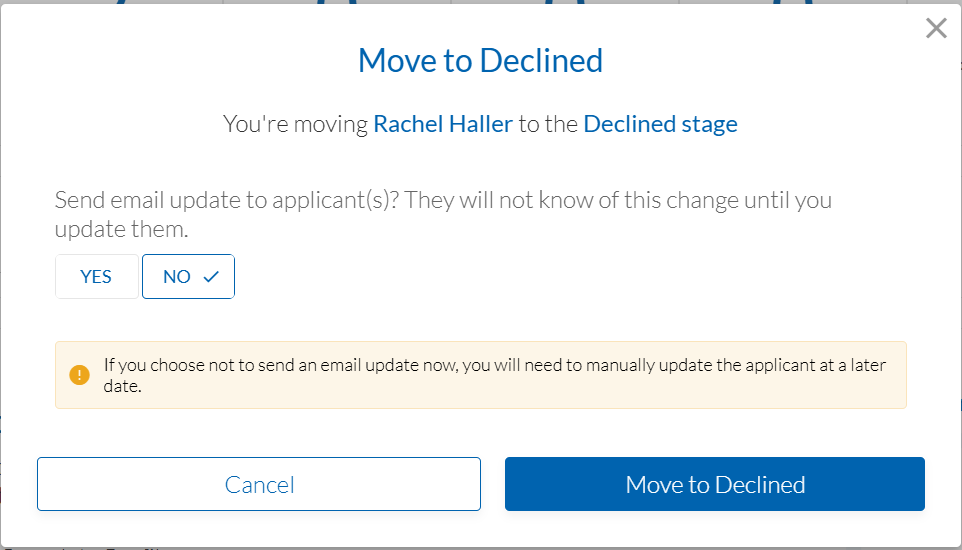
- A pop-up window will appear where you select to email the candidate straight away, or send at a later date
- You can customise your emails—you can copy and paste in your own template and add personalisation tags such as the candidate’s name, your school’s name and position
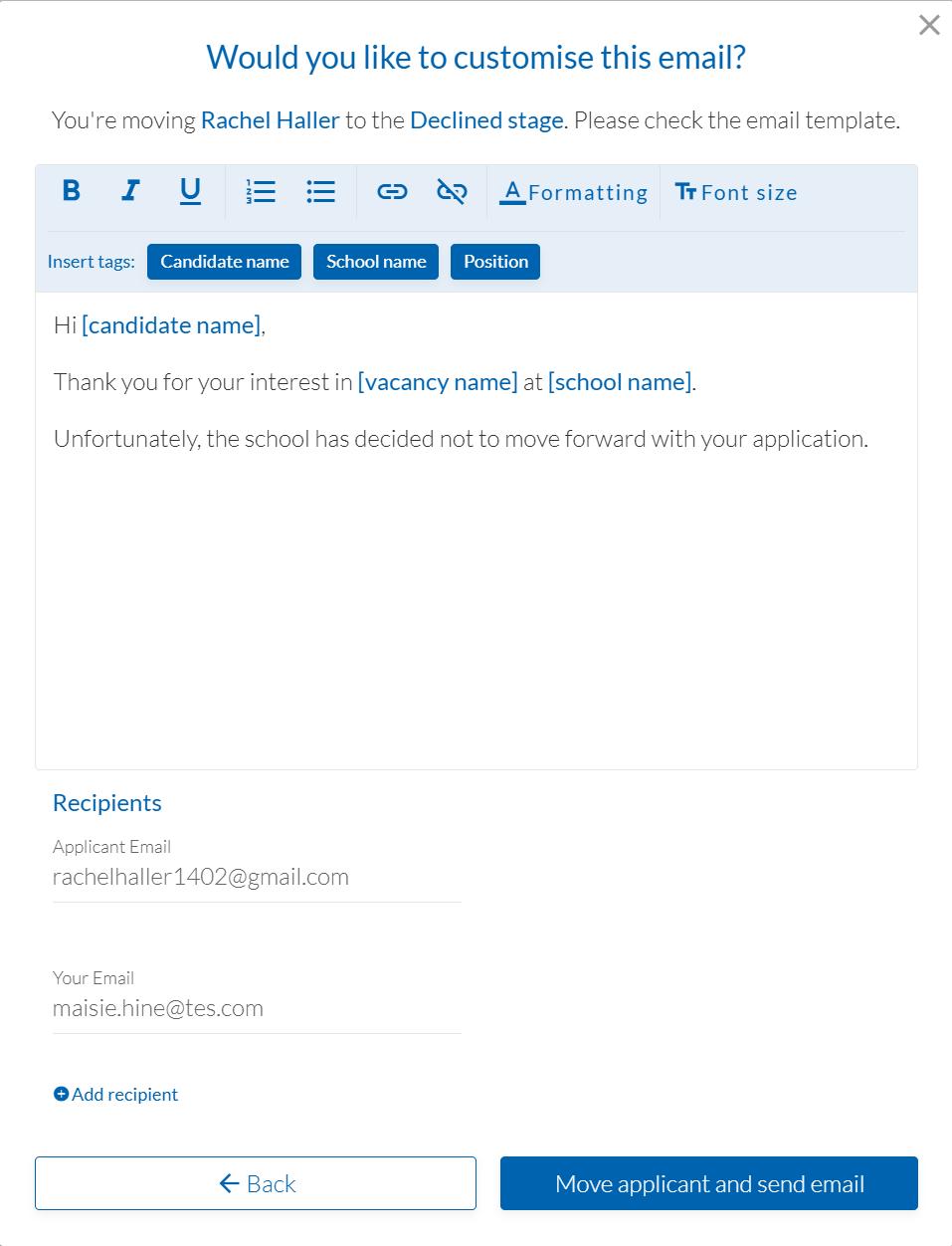
- When you’re ready to send, press Move applicant and send email
Send bulk communications
- From your Tes Staff Management ATS, press Connect, navigate to and select the vacancy you want to review applications for
- Identify the candidate you want to communicate with and tick the lefthand box on their snapshot
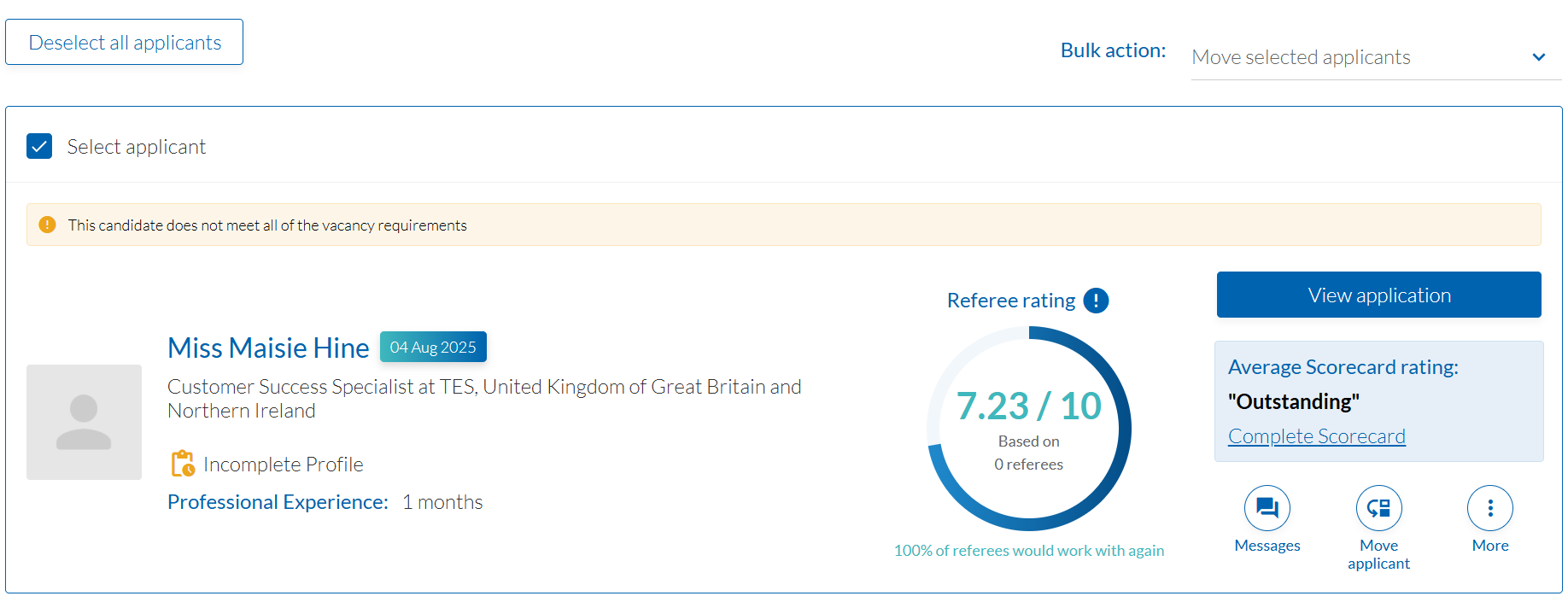
- Choose from the right hand drop down if you want to Longlist, Shortlist or Decline the chosen candidates.
- Depending on your choice, emails can be automatically sent immediately or at a later date with customisable template.
Was this article helpful?
That’s Great!
Thank you for your feedback
Sorry! We couldn't be helpful
Thank you for your feedback
Feedback sent
We appreciate your effort and will try to fix the article