This guide will show you how to download applications as a PDF.
Available to all subscribers
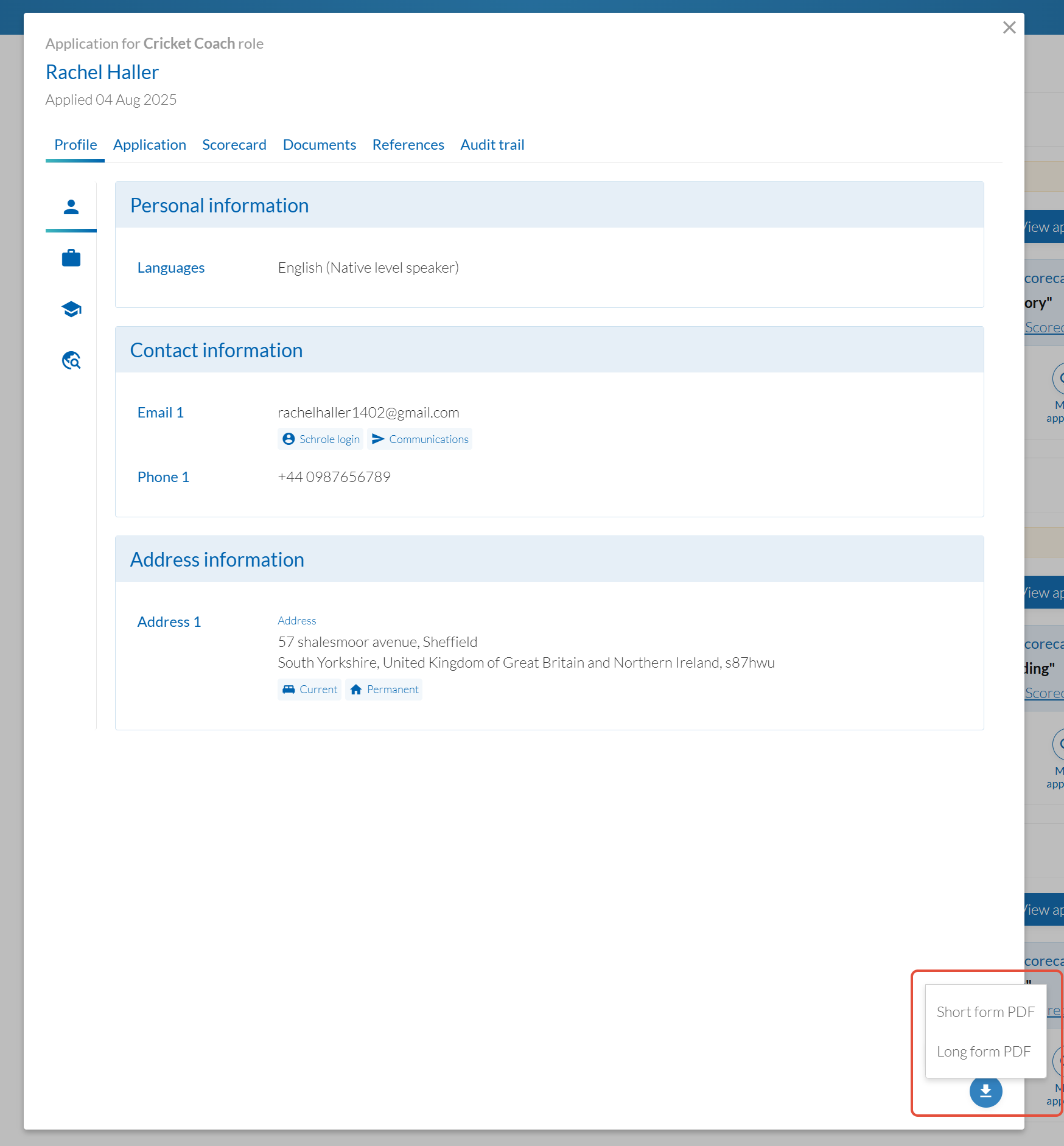
Sharing applications improves your school’s decision making as you can share applications offline with your shortlisting or interview panels, save in your school’s systems and refer to during an interview. You can download PDFs as short form and long form PDFs.
How to download your application forms
- Enter your ATS Connect panel
- Select your vacancy
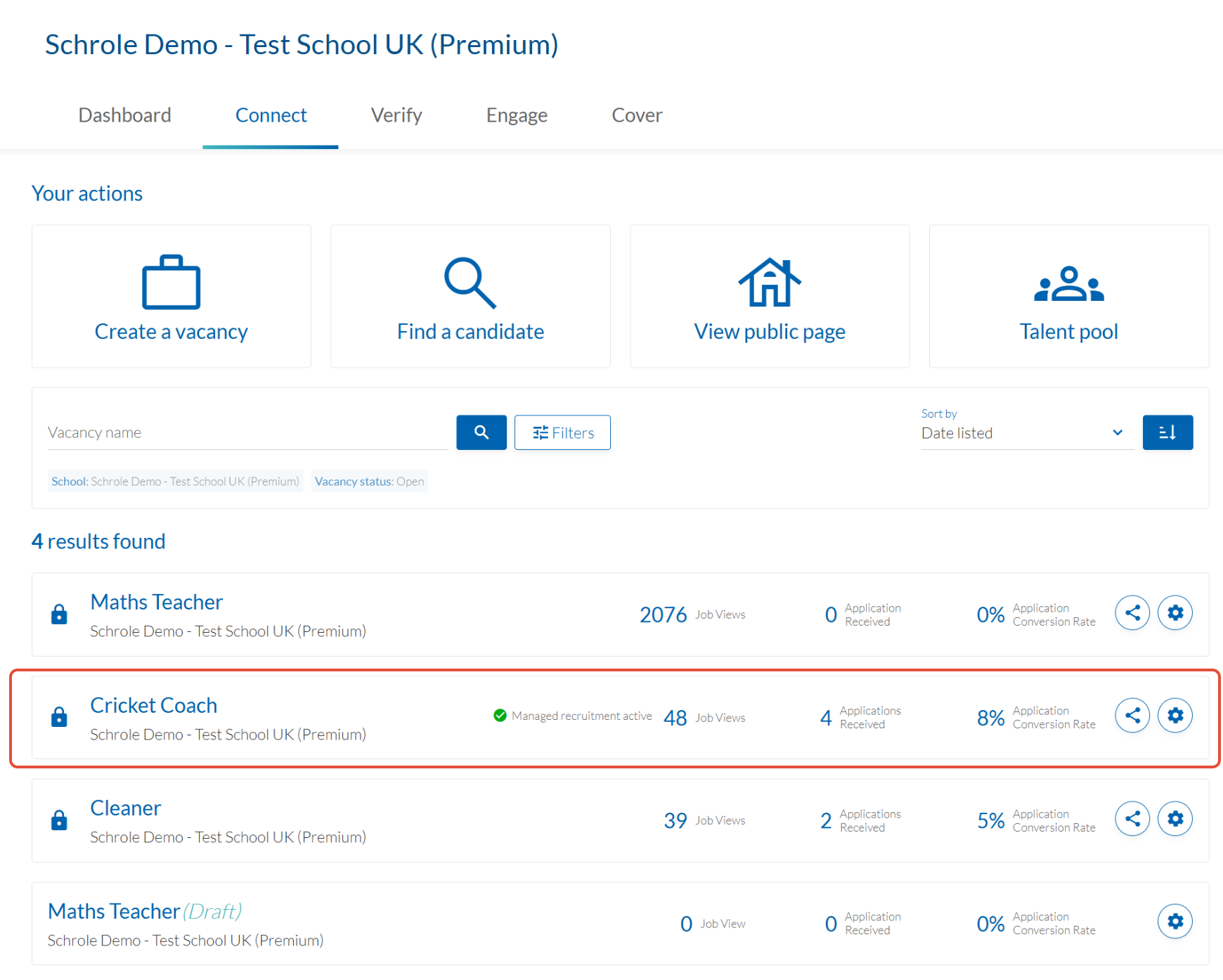
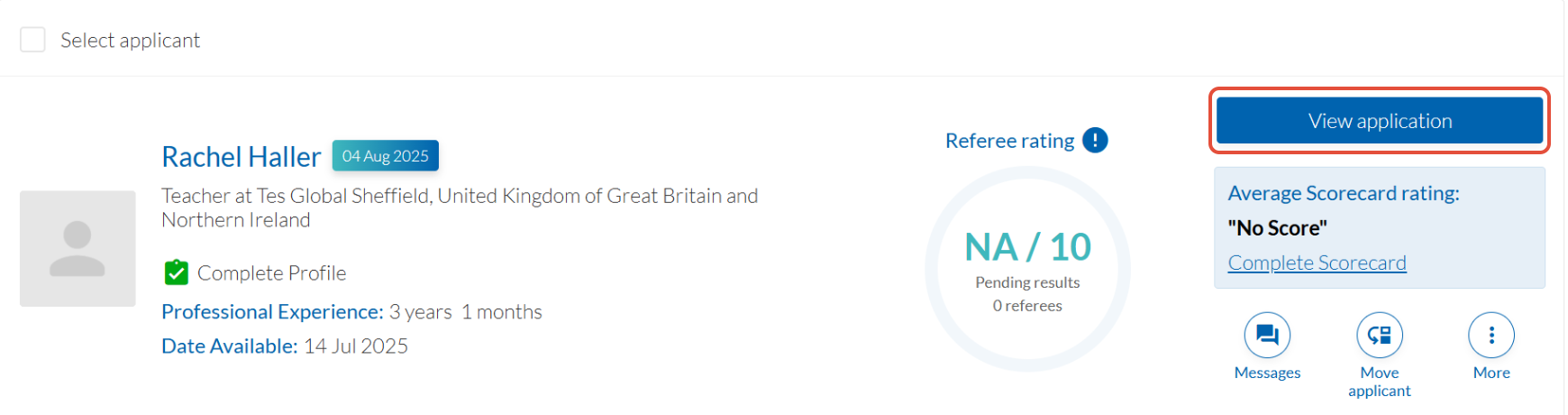
- Choose your applicant and press “View application"
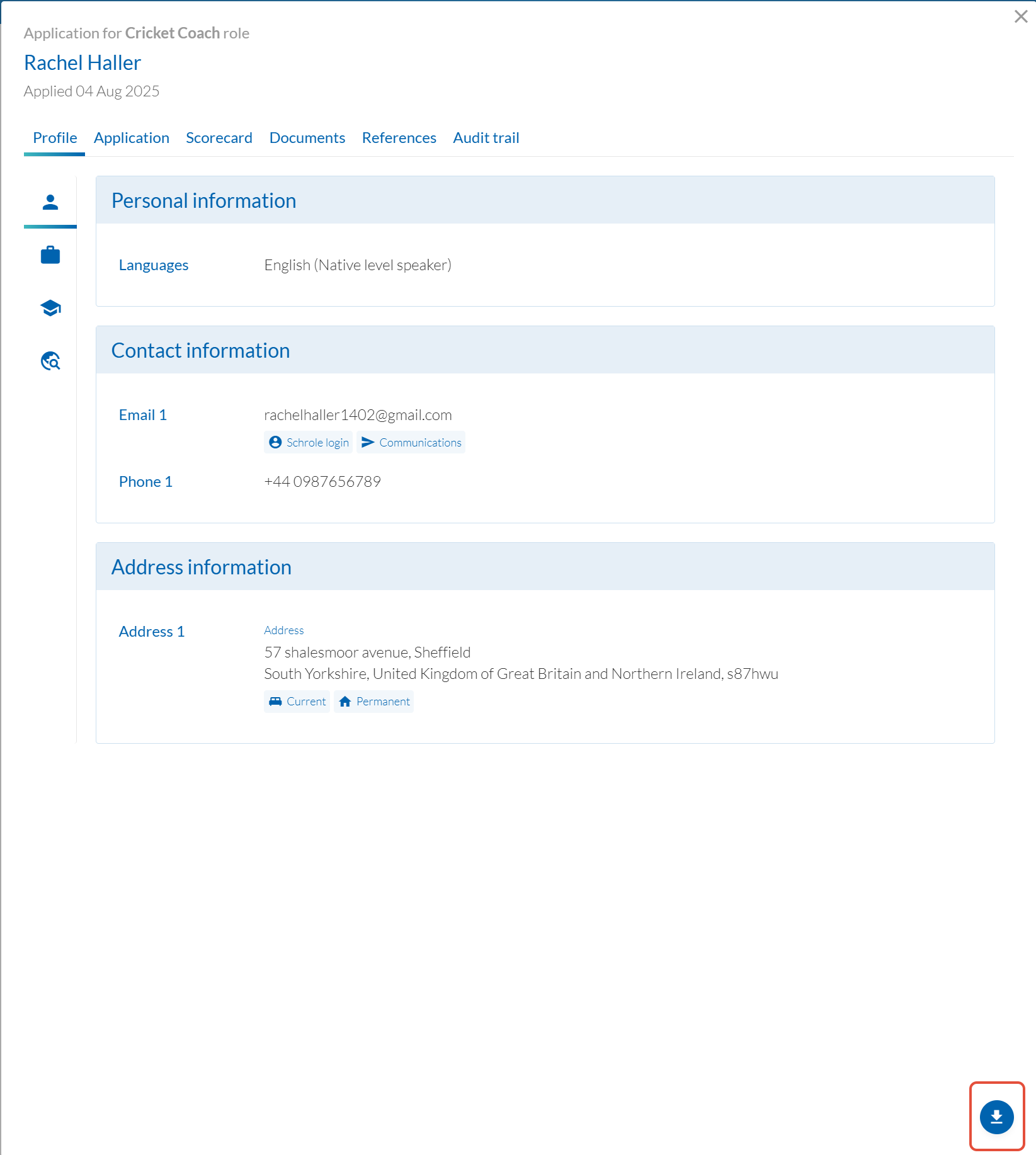
- Click the file download icon in the bottom right-hand corner
- Choose from a short form PDF or a long form PDF
- The PDF opens in a new browser tab
Help and support
Can’t find the answer you’re looking for? We’re here to support you every step of the way.
Help Centre | Contact us |
Our knowledge base has everything you need to know about using Staff Management, including videos, help guides and more.
| Contact us anytime from Mon to Fri, 8:00am-17:00 (UK time).
Call: +44 020 3194 3050 |
Was this article helpful?
That’s Great!
Thank you for your feedback
Sorry! We couldn't be helpful
Thank you for your feedback
Feedback sent
We appreciate your effort and will try to fix the article