In this guide, you will see how to add custom questions to your vacancies for candidates to answer.
Custom questions are questions you can ask candidates when they apply for a role at your school. There are three types of questions.
- School group questions: these are set at a school group or MAT level and are questions that require answers to work within your school group. These questions will also be asked to other schools in your group.
- Default questions: will be asked to everyone who applies for at your school and can be school specific.
- Supplementary questions: these questions are asked at a vacancy level and can be tailored to a specific job type e.g. you can ask a teacher a different compulsory question to a HR team member.
Steps to create a custom question
1. In the left-hand menu, press Manage School Questions.
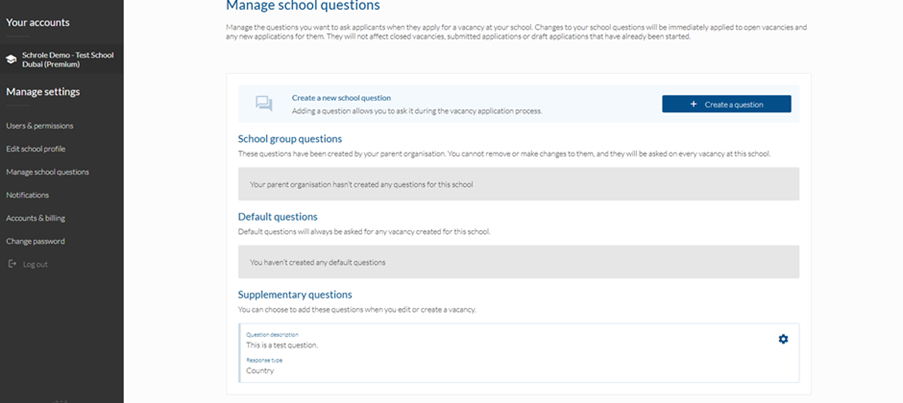
2. Select + Create a question.
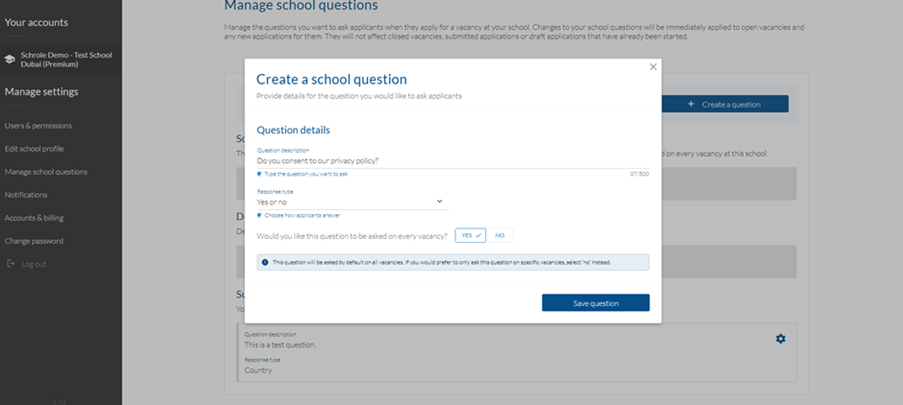
3. Under Question Description, write your question.
4. Choose your Response Type from the drop down. Your options are Country; Date; Number; Text; Yes or no
5. If you want to create a Default question, press yes.
6. If you want to create a Supplementary question, press no.
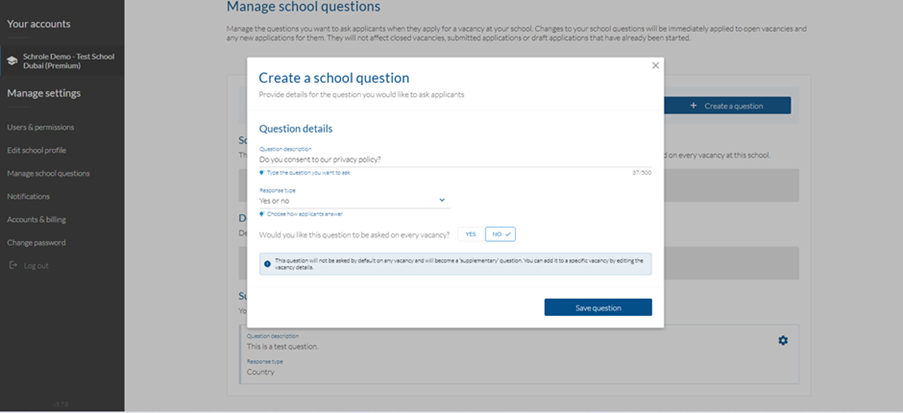
7. To save your question, press Save question.
8. You can edit your question by pressing the gear icon next to your question.
Advice: Tes recommends only applying questions on every vacancy if they are applicable to your entire school e.g. data protection questions.
Help and support
Can’t find the answer you’re looking for? We’re here to support you every step of the way.
Help Centre | Contact us |
Our knowledge base has everything you need to know about using Staff Management, including videos, help guides and more.
| Contact us anytime from Mon to Fri, 8:00am-17:00 (UK time).
Call: +44 020 3194 3050 |
Was this article helpful?
That’s Great!
Thank you for your feedback
Sorry! We couldn't be helpful
Thank you for your feedback
Feedback sent
We appreciate your effort and will try to fix the article