This guide will show you how you can set up your first survey and navigate the settings of Staff Pulse.
It's time to set up your first survey to see where your school excels and where there's room for improvement.
To do this, log into the Tes Portal, select the Staff Pulse tab or click Settings within the tab.
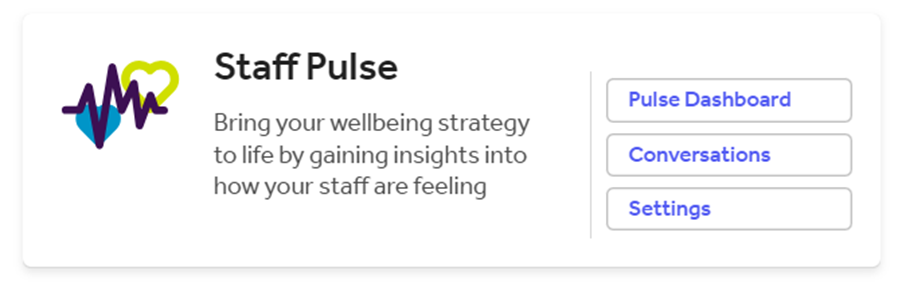
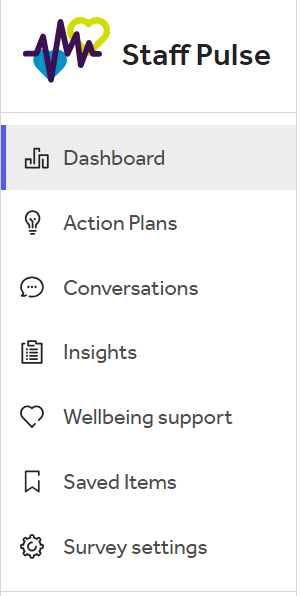
Now you are in the portal you will see the Survey settings tab to click into (if you are not already there) on the menu bar on the left-hand side.
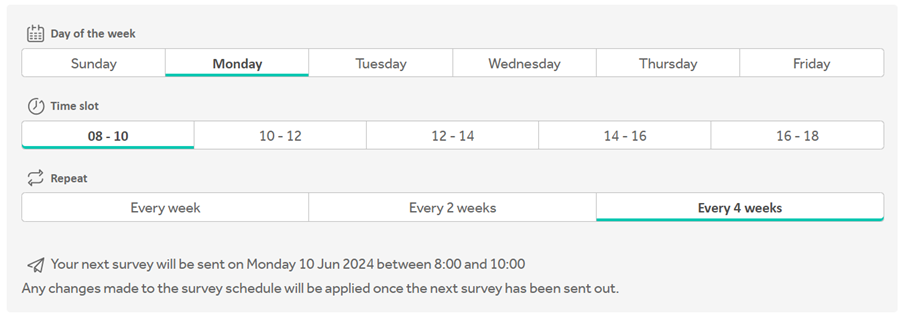
To create your first survey, you need to decide and set when you'd like them to be sent and how frequently.
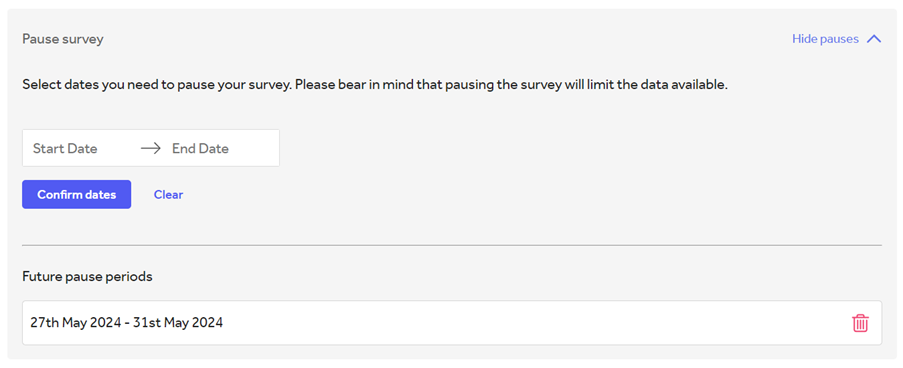
To pause your surveys or delay them, select the Pause survey tab and choose the dates you wish not to send the survey out on.
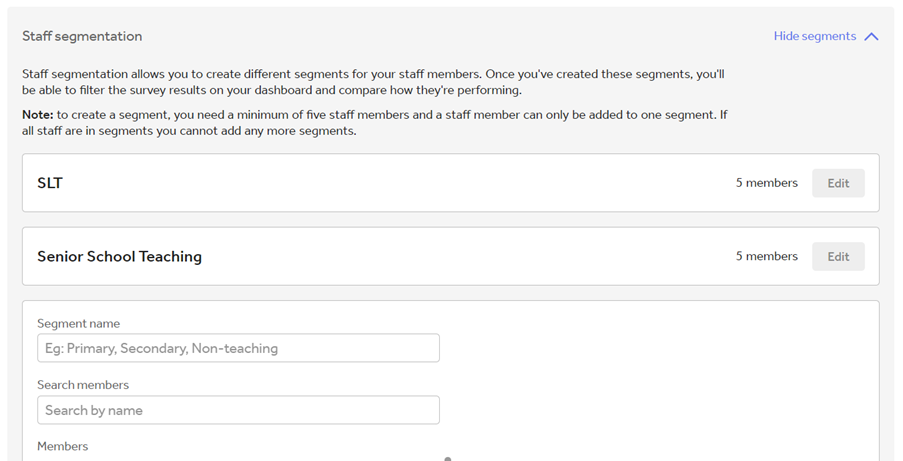
Segmenting your staff allows you to categorise teams into different departments so that the actions you take can be more targeted. You can review the average scores per segment when you come to reporting on your surveys. Select the Staff segmentation tab, click Add segment, choose the name and select the staff that are to be placed within that segment. Please Note: to create a segment, you need a minimum of five staff members and a staff member can only be added to one segment. If all staff are in segments you cannot add any more segments.
When you begin using wellbeing surveys, you will be using the questions within the Categories and questions tab. These questions were made by an expert in the field of educational psychology and range over 21 different categories of wellbeing. These questions will be selected at random, and rated on a scale of 0-10 and allow for open feedback.
You can also add your own set of questions to be integrated with the pre-made questions. To add these, select the Custom questions tab, select Add question and type in your question. You can add as many custom questions as you like and include three in each survey. Please note: these will also be scored on the 0-10 scale and are able to be commented on.
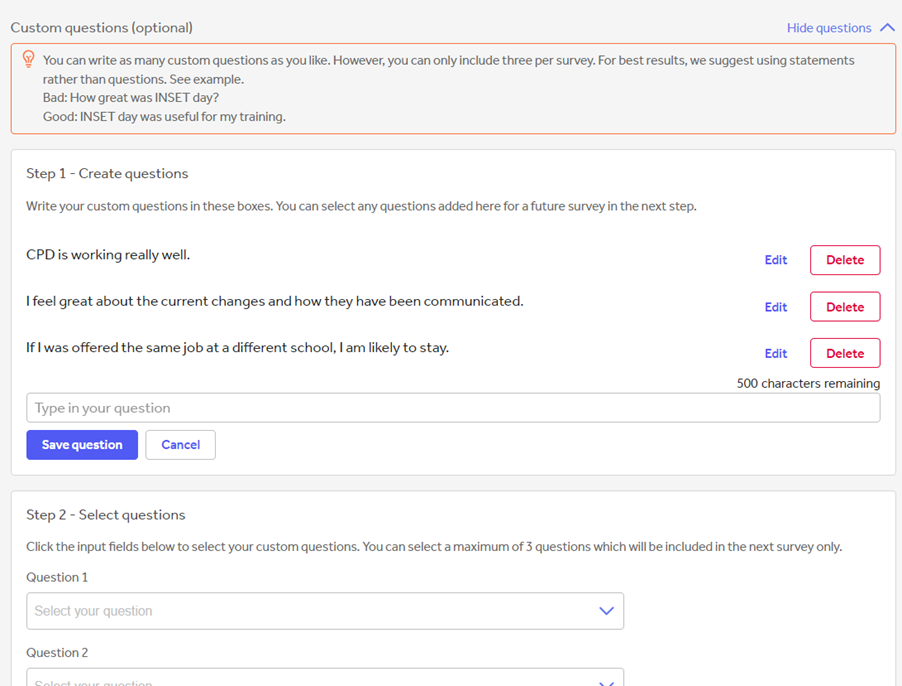
Once you have made your bank of custom questions, add each question to feature in the next survey. These will reset for the next survey to make sure you aren't asking the same questions every survey.
Once you have made all the changes to your settings, click Save survey at the bottom of the page, and your survey will send out when you have selected it to.
Help and support
Can’t find the answer you’re looking for? We’re here to support you every step of the way.
Help Centre | Contact us |
Our knowledge base has everything you need to know about using Staff Management, including videos, help guides and more.
| Contact us anytime from Mon to Fri, 8:00am-17:00 (UK time).
Call: +44 020 3194 3050 |
Was this article helpful?
That’s Great!
Thank you for your feedback
Sorry! We couldn't be helpful
Thank you for your feedback
Feedback sent
We appreciate your effort and will try to fix the article