In this guide, we’ll show you how to access your recruitment and job performance analytics to get insight into your results.
There are two types of analytics panels you can access in your Tes ATS to gauge how effective your recruitment activities are:
- Recruitment performance summary: provides a total sum of all engagement and conversion results across all vacancies published within a specific time period.
- Job performance analytics: gives you a quick snapshot of how candidates are engaging with your online listing on Tes Jobs or other external sites (if enabled).
On this page
View recruitment performance summary
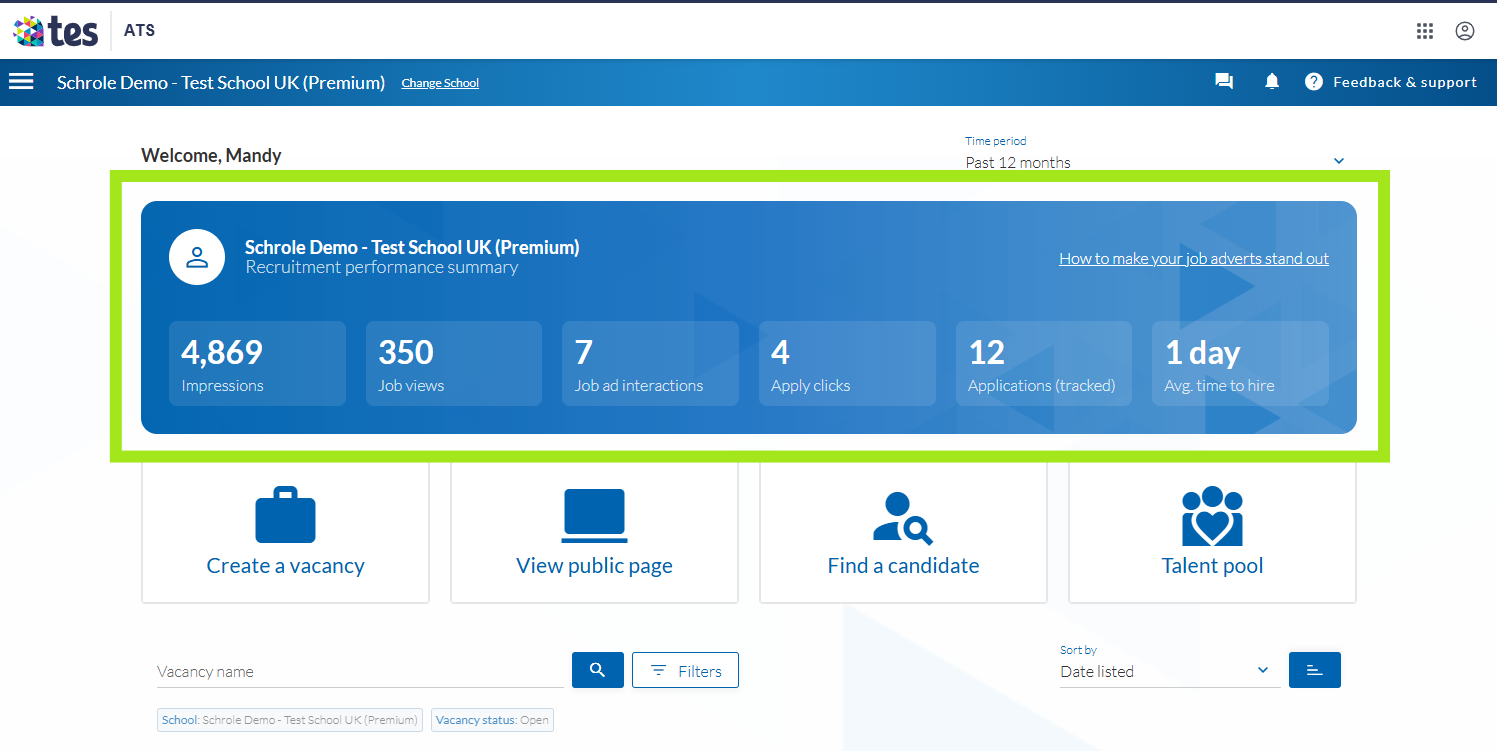
After logging in, your recruitment performance summary is located at the top of your home page (preview below).
This panel provides a quick overview of your schools’ overall recruitment activities to make measuring, reporting on and using performance insights easier.
You’re recruitment performance summary includes:
- Impressions: the total number of times your vacancy has been shown to jobseekers.
- Job views: the number of times a vacancy was viewed (previously referred to as vacancy views).
- Job interactions: number of click-throughs from your job vacancy, including every time a candidate selects Apply, Save, Recruiter contact, School contact or School page.
- Apply clicks: number of users clicked through to apply.
- Applications: the number of applications submitted within your ATS (not an external website).
- Average time to hire: the average time taken to successfully fill a vacancy.
✳ Tip: Filter your time period to match your reporting period if you’d like to compare results for a specific time period. i.e. monthly, quarterly or yearly.
View job performance analytics
Your job vacancy performance analytics allows you to compare results more effectively and identify which listings are generating the strongest results.
You can either view job performance analytics from your homepage or within a job itself.
To get started, follow these steps:
- Log into your ATS or expand the main menu by selecting the hamburger icon and select Connect to view all vacancies.
- You’ll see a summary or all job performance metrics under All vacancies.
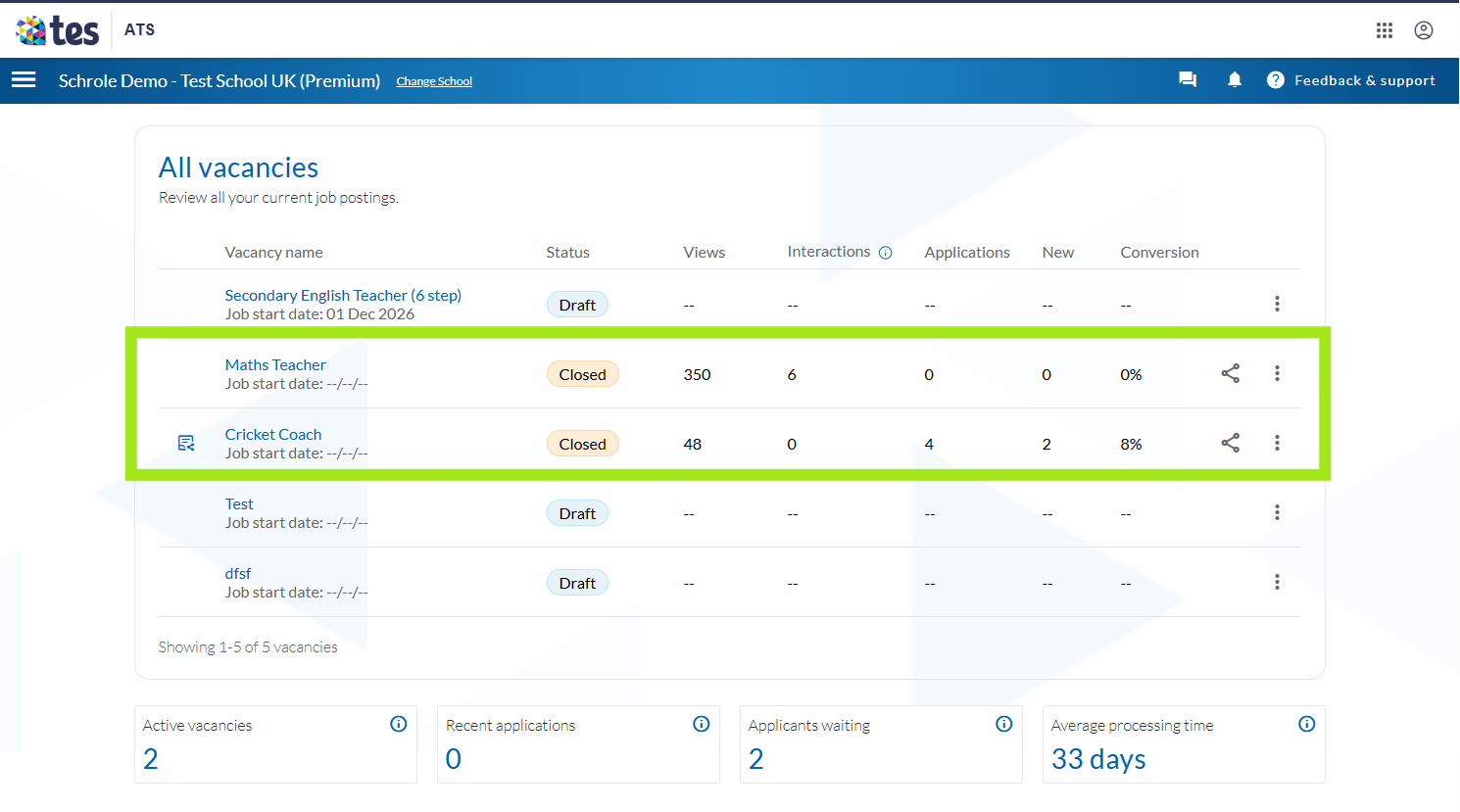
- To find results for a specific job, you can search or Filter to find the job to Select the job to open it.
- Scroll down to the bottom of the page to find Your recruitment statistics.
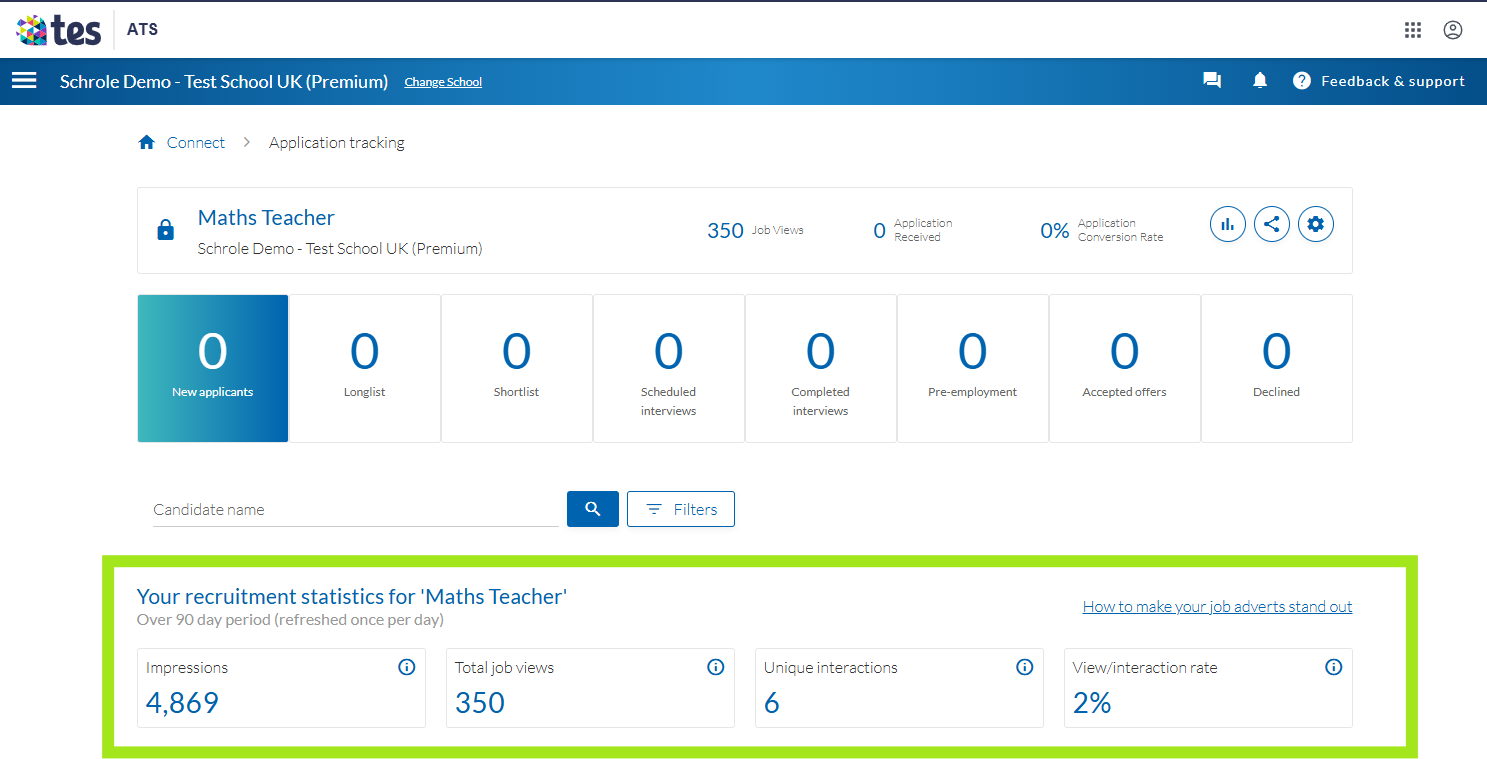
Here you’ll see a summary of all online leads and engagement with your job vacancy over the last 90 days.
If reach is limited, it can indicate that your job lacks relevancy for your target audience, or that additional outreach may be necessary to attract quality candidates.
How can I measure the performance of my job vacancies?
Your job performance analytics panel summarises online leads, and interaction conversions engagement for a particular job, including:
- Impressions: the number of times your job listing is served or displayed in Tes Jobs search results (visibility/reach).
- Total views: the number of people who view your job vacancy page.
- Unique interactions: the number of people who engage with or act on your job listing. For example, click-throughs to apply or view contact details.
- Applications: received via Tes Jobs or an external job board (if enabled).
- New applications: received and awaiting review.
- Conversion rate: the number of candidates who applied after viewing your job vacancy.
- View/interaction rate: the percentage of views that result in an interaction.
Was this article helpful?
That’s Great!
Thank you for your feedback
Sorry! We couldn't be helpful
Thank you for your feedback
Feedback sent
We appreciate your effort and will try to fix the article