Invite colleagues to access your portal and get started
In this guide, we’ll show you how to invite others to your Staff Management subscription and manage access rights in the Tes portal (your portal) and the Applicant tracking System.
Only an Administrator can update access permissions to control:
- Who can access your portal (and what level of access they have).
- Updates to your school’s Career Site (Tes Portal): the customisable page where your vacancies and school profile are displayed to candidates
Staff Management user roles and permissions
There are 3 types of role-based permissions that control what level of access users have your Staff Management subscription.
To assign users permission to access your recruitment features, they also need additional access permissions in your Application Tracking System.
Role | Staff Management features | Access permissions |
Administrator
| Full access all recruitment, wellbeing, training features.
Suitable for recruitment/HR managers or senior leaders. | Can manage vacancies, invite other users, and configure the career site.
It’s wise to have at least two Admins for backup.
|
Staff member | Select access to recruitment features (as determined by Admins). | · School leader: can view all scores and comments in Staff Pulse. · Recruitment toolkit: can post, review, and manage job vacancies and applicants. · Staff Pulse: can access and receive surveys. |
Agent | Limited access to recruitment features.
Suitable for external recruiters.
| Can post and manage job vacancies for your school if needed.
Ensure you trust any agent before assigning this role, as they can manage your job vacancies on behalf of your school. |
Adding or removing user roles and permissions
If you’re an Administrator, you can update users and their role permissions after logging into your Portal. If they don’t have a Tes account yet, they’ll need to sign up before permissions can be assigned to them.
- Go to Administration > Manage users
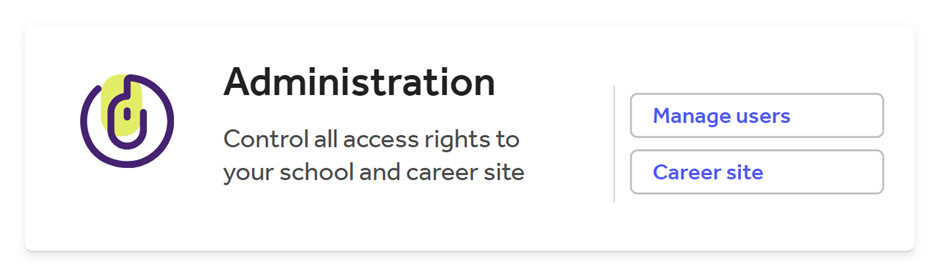
- Under user accounts, select which type of user you’d like to create an account for. Then select Add Administrator, Staff or Agent, and add the users’ work email address.
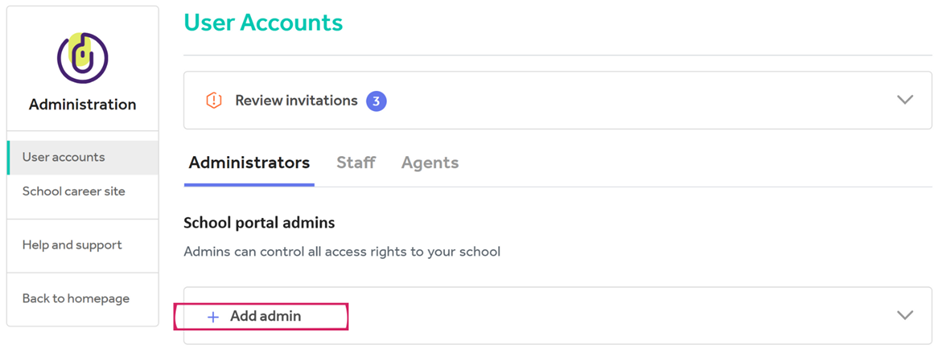
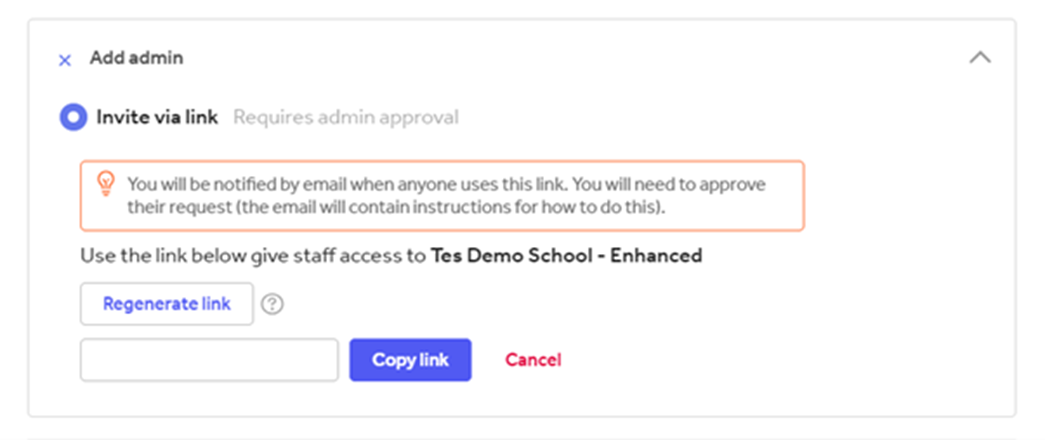
- Depending on the user type, you can either send them an Invite to login and/or invite via link.
New administrators and Agents: can accept your invite by visiting the link provided and selecting Confirm.
You’ll need to Approve this invitation request in Administration > User accounts before their permissions will take effect in your portal
Staff members: can be invited individually or in bulk by uploading a CSV file. Before sending the invite, you can also choose which permissions they should have based on their role responsibilities.
Roles and access permissions ATS:
Each role level has a different level of access permissions, and these are synced to the permission on Tes Portal.
Users will need to log out before permission updates take effect and it may take a few minutes.
Role | Access permissions |
Super user | · Receive notifications of applicants · Move applicants through the Vacancy Pathway · Communicate with applicants · Create and edit job vacancies · Set user permissions · Edit school profile · Turn anonymisation on or off |
User | · Receive notifications of applicants · Move applicants through the Vacancy Pathway · Communicate with applicants · Create and edit job vacancies |
Support user | · Edit school career page · Turn anonymisation on or off |
Limited user | Can only access functions for the specific jobs they have been invited to view. · Receive notifications of applicants · Move applicants through the Vacancy Pathway · Communicate with applicants · Create and edit job vacancies |
Agency user | We recommend this permission is only used for third parties. · Create and edit job vacancies |
Comparison with Tes Portal roles
There are different roles and permissions you can assign users in your Application Tracking System and the Tes Portal.
Application Tracking System role | Tes Portal role |
Super user | Administrator |
User | Staff > Recruitment toolkit |
Support user | Staff |
Limited user | Reviewer |
Agency user | Agent |
Removing users and/or role permissions (Tes Portal): If a staff member leaves or should no longer have access, only the administrator can Remove them (from User accounts > Administrators).
Removing users and/or role permissions (Applicant Tracking System): You will need to also remove the user from your Applicant Tracking System:
- Go to Users and Permissions (under Manage).
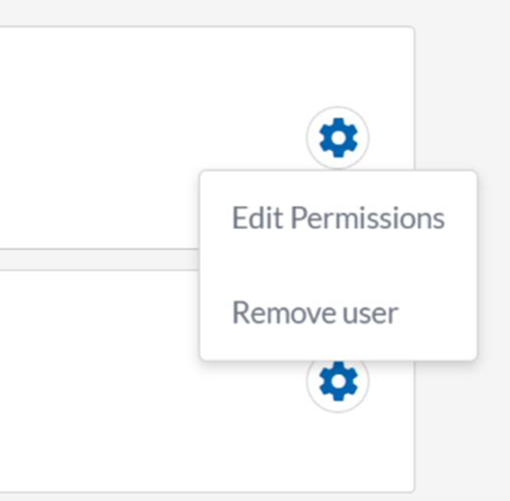
- Under Your school users, find the user whose permissions you want to update and select the settings (cog icon) > Remove user.
Help and support
Can’t find the answer you’re looking for? We’re here to support you every step of the way.
Help centre | Contact us |
Our knowledge base has everything you need to know about using Staff Management, including videos, stepped help guides and more.
| Contact us anytime from Mon to Fri, 8:00am-17:00 (UK time).
Call: +44 020 3194 3050 |
Was this article helpful?
That’s Great!
Thank you for your feedback
Sorry! We couldn't be helpful
Thank you for your feedback
Feedback sent
We appreciate your effort and will try to fix the article