How to keep track of recruitment decisions throughout your hiring process
The Application Tracking System (your system) makes managing recruitment tasks and tracking decisions quick and easy as you screen, shortlist, interview and hire candidates. Once you've created a vacancy, all job applications submitted via Tes Jobs will automatically flow into the system, unless you've chosen to divert applicants to an external website and manage them independently.
If you have permissions to move applicants through the vacancy pathway, you'll be able to:
- Shortlist promising candidates
- Download or print applications for record keeping
- Update application statuses to track decisions i.e. Shortlisted, hired etc
- Communicate with applicants (individually or in bulk) when they're unsuccessful or invited for an interview with emails and direct messages
- Manage reference checks and screen candidates against role requirements
In this guide, we'll show you how to leverage your Staff Management recruitment tools to make recruitment effortless for you, your colleagues, and candidates.
Review and shortlist job applications
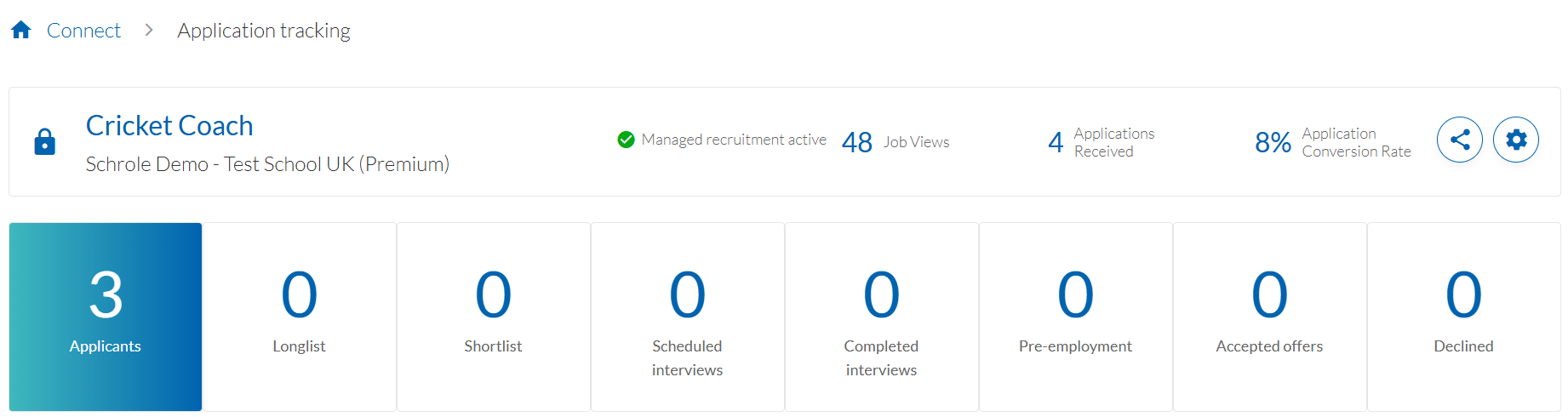
When you're ready to start reviewing job applications, go to Connect and select the vacancy to see all applicants and recruitment details.
If you want applicants to avoid bias and comply with equal opportunity standards, you can choose to anonymise applicants.
You can also use the Sort by or advanced Filters to find which candidates most effectively meet your job requirements.
Working with a individual application
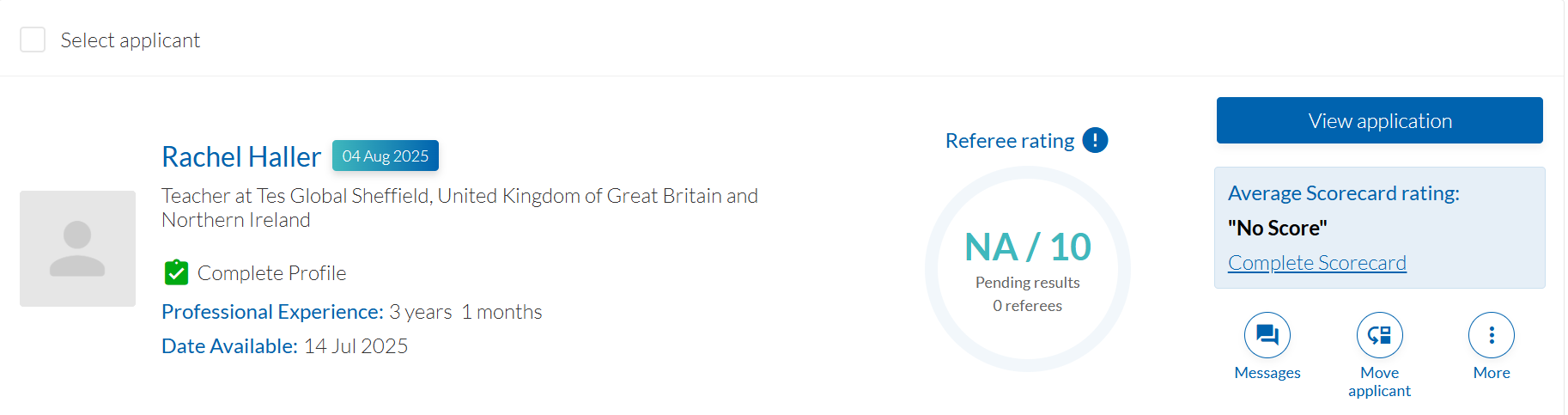
To open an application from within the vacancy, select 'view application' (on the right side of the candidates name).
When reviewing a candidate and their application, you can:
- View application details: At the top, you'll see the candidate's provided information - typically their personal details (name, emails - unless anonymised), answers to any application questions, their CV, cover letter or supporting statement, and any documents they uploaded. Take your time to read through these materials.
- Download a long or short profile or full application (PDF). The difference between these formats is:
- Short form: includes profile information, qualifications, skills and experience, reference contacts and any profile requirements, like right to work or legal declarations.
- Long form: same as short, plus application answers (if required).
- Full application (via email): select Download all to view the complete application, including profile information, application answers, CV, supporting documents, as well as any completed reference forms.
- Application answers: From the application tab you can go into Application to view all answers the application questions online, or Download the application answers (PDF).
- Shortlist/Longlist candidates: to Shortlist a candidate you've decided to interview, find them in the vacancy applicants list and select Move Applicant and select Shortlist. If you decide to deprioritise anyone shortlisted, you can also move into a longlist until recruitment is finalised. Simply select Move applicant to... > Longlist.
- School notes/comments: You and your colleagues can add internal notes a candidate to help with decision making. This is an internal discussion tool - candidates do not see these comments. You could note something like 'Great impressions'. All administrators and reviewers you've invited to this vacancy can see and add comments, making collaboration easier. This can be found in the More section on a candidates application.
Tracking actions and communications
There are certain actions you can take to progress an application when recruitment decisions are made. Some have communications attached to inform candidates at each stage. They include:
Shortlist a candidate: Moves candidate/s into the Shortlist status to be considered for an interview.
Decline a candidate: Moves candidate/s to a Declined statues and you can choose to send an email to communicate they're unsuccessful.
Start a conversation/Go to conversation: You can send a direct message to candidates for them to respond within the system. For example, if you'd like to arrange a time for a screening call before scheduling an interview.
Schedule an interview: Sends the candidate an email (default or handled manually) inviting them to an interview with a calendar invite and meeting link. This will move the candidate to Interviews scheduled status.
Request or review references: If you decide to progress a candidate to Pre-employment checks (after interview), you can request or check references as part of your screening process.
Add/remove from talent pool (premium only): Candidate in your talent pool can be considered for future vacancies and will come up in future searches.
Making an offer and concluding the hiring process
Once all pre-employment checks are finalised and you’ve decided who the preferred candidate is, it’s time to make a job offer and communicate with all successful and unsuccessful applicants.
To update your vacancy to reflect the outcome, you’ll need to:
- Update any candidates that you would like to be considered for future vacancies by selecting Add / Remove from talent pool (premium only).
- Move successful interview candidates/s from Completed interviews to Pre-employment.
- Make a job offer by sending a message to the candidate in the system (Start or Go to a conversation), or via external email if you’d prefer. Once your preferred candidate has accepted your job offer, move them from Pre-employment to Accepted offers to document this decision.
- Move all unsuccessful applicants to Declined to send them a default or customised email.
- Download or export one or more applications (PDF or zip file) for record keeping or sharing with the panel when finalising the offer.
Now you’ve concluded the hiring process and have communicated the outcome with all applicants.
Help and support
Can’t find the answer you’re looking for? We’re here to support you every step of the way.
Help Centre | Contact us |
Our knowledge base has everything you need to know about using Staff Management, including videos, help guides and more.
| Contact us anytime from Mon to Fri, 8:00am-17:00 (UK time).
Call: +44 020 3194 3050 |
Was this article helpful?
That’s Great!
Thank you for your feedback
Sorry! We couldn't be helpful
Thank you for your feedback
Feedback sent
We appreciate your effort and will try to fix the article