In some countries, it’s necessary to anonymise applicants during the screening process to meet equal opportunity requirements or standards. This protects workers from discrimination based on their:
• age, culture/ethnic background
• disability status
• gender identity
• religious belief
• sexual orientation.
Turning on anonymisation in your applicant tracking system (the system) removes personal information from initial applications to avoid bias and discrimination. This will keep your hiring process compliant with equal opportunity laws or standards if they apply to your school.
Available to all staff with Super, Agent and Limited user role permissions.
On this page
Turn anonymisation on/off for all schools
Turning on anonymisation in your account will affect all vacancies, regardless of which school it’s created in.
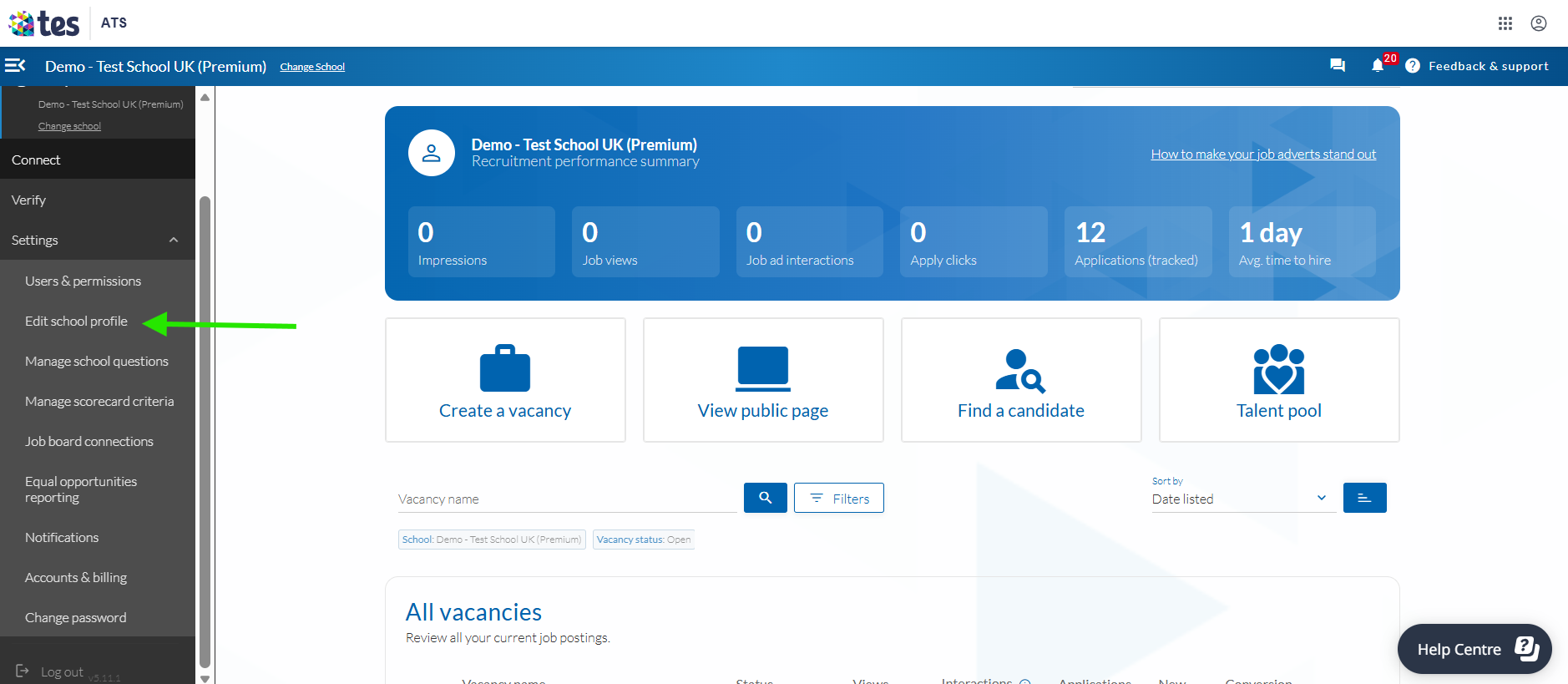
1. Go to your Settings and select Edit school profile
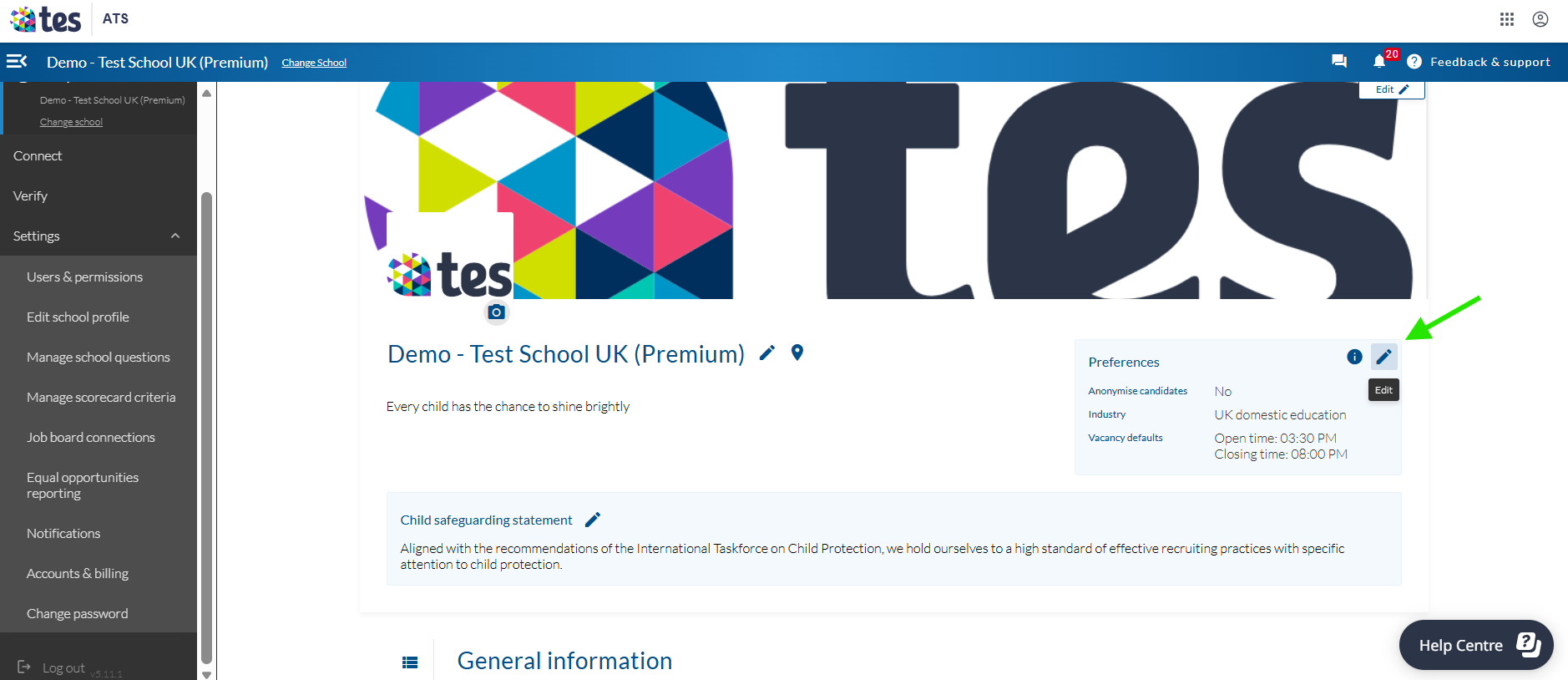
2. Under your banner image next to Preferences, select Edit.
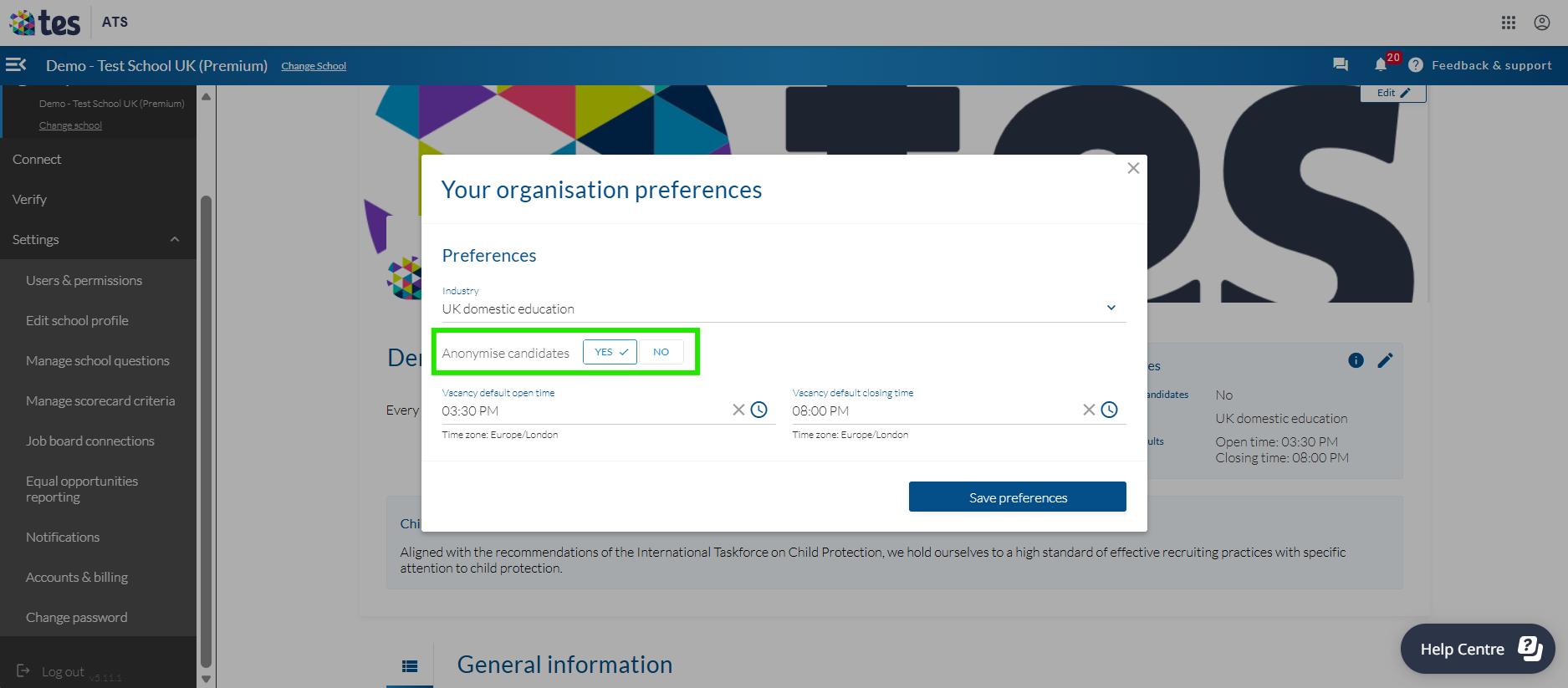
3. Under Preferences, there’s an option to Anonymise candidates. Select Yes, then Save preferences.
Turn anonymisation on/off for an individual school
If you’re part of an international group or multi-academy trust (MAT), equal opportunity requirements differ from school-to-school.
If this is the case, here’s how anonymisation works based on your application type:
Optimised online form: applicants are completely anonymised until they reach the shortlist stage. All identifying information (including their profile picture) will not be accessible until you Shortlist an applicant or Schedule an interview.
CV only: the applicant is anonymous when you view their profile or application in the system until you shortlist them. However, if you choose to download a CV (PDF) while they’re in the Applicant and Longlist stages, it will show the original document with all candidate information visible.
Upload a hardcopy form: Applicants will remain anonymised in the system until the Shortlist stage. However, as they’re filling in your own custom application form, we’re not able to control anonymisation to any document they upload and identifying details may be visible.
Link to an external website: If you opt to divert applicants to your own website to apply for a job, their data will not be stored in the system. We recommend you consult your schools’ data handling and equal opportunity policies to ensure your process meets compliance requirements.
Was this article helpful?
That’s Great!
Thank you for your feedback
Sorry! We couldn't be helpful
Thank you for your feedback
Feedback sent
We appreciate your effort and will try to fix the article