Post your school’s job vacancies to Tes Jobs and you can easily track applications in your recruitment Application Tracking System (your system).
Simply fill in the vacancy form and we’ll draft the perfect job description, optimised to attract the right candidates.
To post a job, your system administrator will need to give you the right access permissions.
To get started, watch our quick video tutorial on posting a job.
On this page
- Create and post a job vacancy
- Add job vacancy details
- Weight roles in your position breakdown
- Create and edit your job description
- Add salary range (optional)
- Add supporting documents
- Set vacancy start and end dates
- Add vacancy screening questions
- Add locations (optional)
- Application and publishing options
- Customise application forms and requirements
- Set your recruitment pathway
Create and post a job vacancy
First, you'll need to log in to the Applicant Tracking System (your system) and select Create a vacancy. If it’s an existing job vacancy you want to edit, go to the main menu, select Connect and use the search or filters to locate it.
Follow the steps below to draft, update, and/or post a job vacancy.
Add job vacancy details
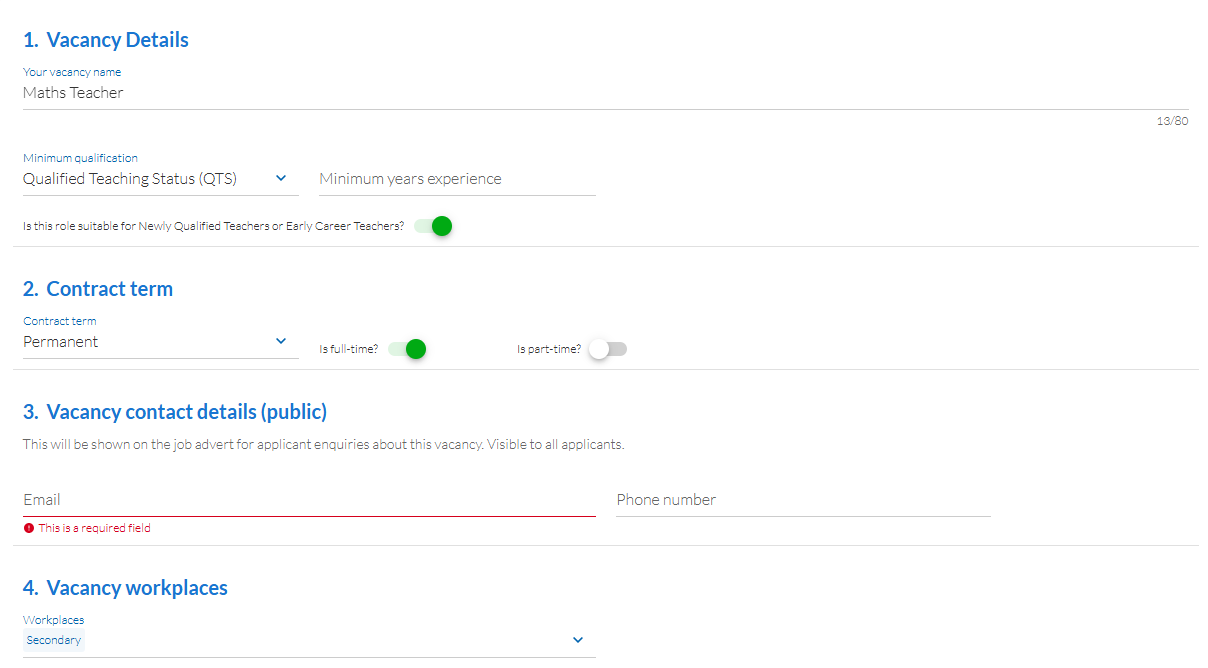
Add information about your job vacancy, contract term, workplace and position breakdown and we’ll help you draft the job description.
- Vacancy name: Use relevant keywords to describe the job so it's easy for candidates to search and find.
- Minimum qualification and Minimum years' experience (optional).
- Allow limited users to manage vacancy: Toggle on if you'd like the role to be managed by users with Limited permissions.
- Contract term: Define if the contract is ongoing or temporary using a dropdown option. 'Supply' is relevant if it's casual or seasonal role that is periodic.
- Full time or part time: Toggle on one option to set the employment frequency.
- Vacancy contact details (public): Input the email and phone number to display on your vacancy.
- Vacancy workplaces: Select one or more areas this potion will work in from the dropdown.
Weight roles in your position breakdown
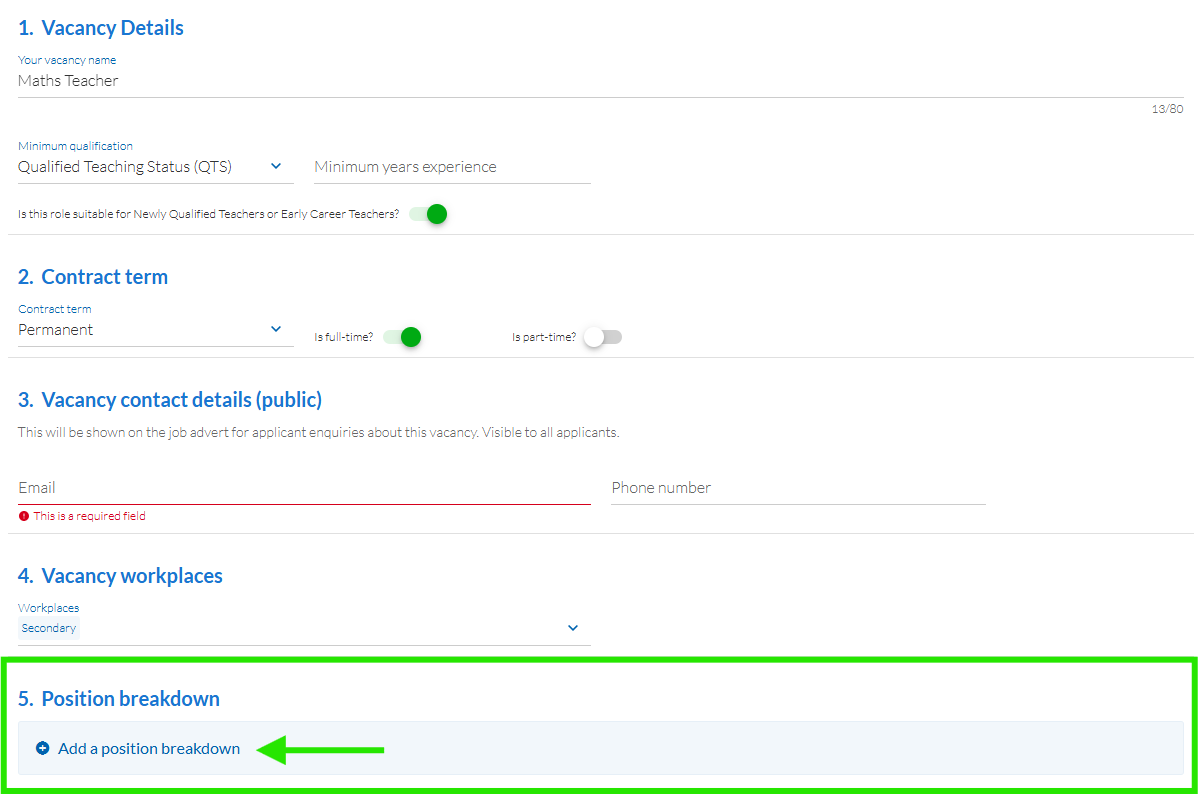
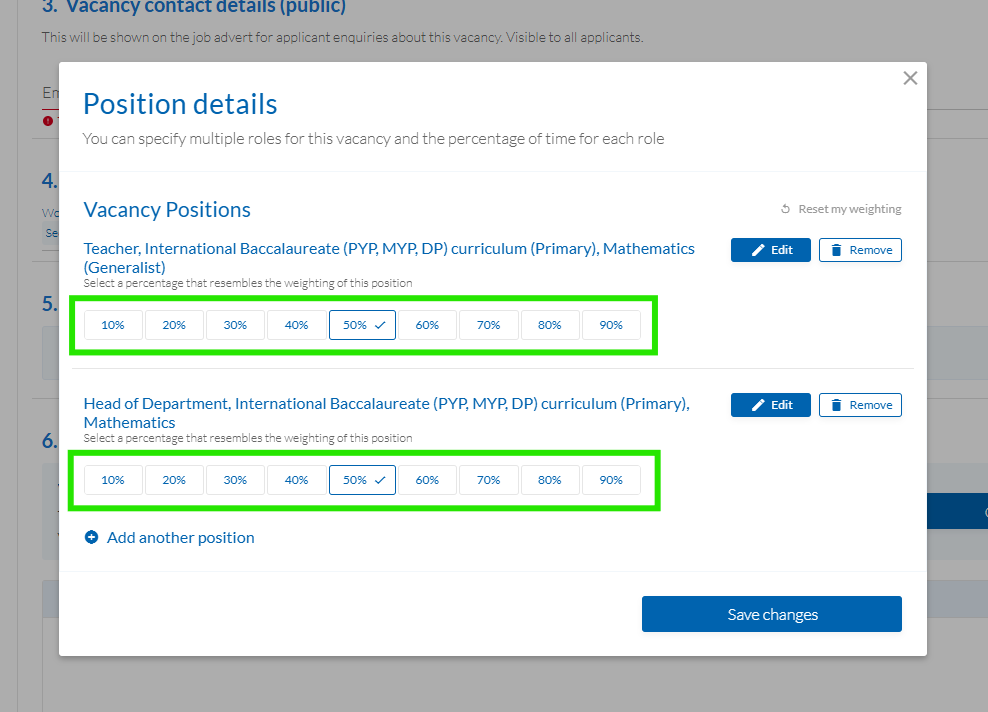
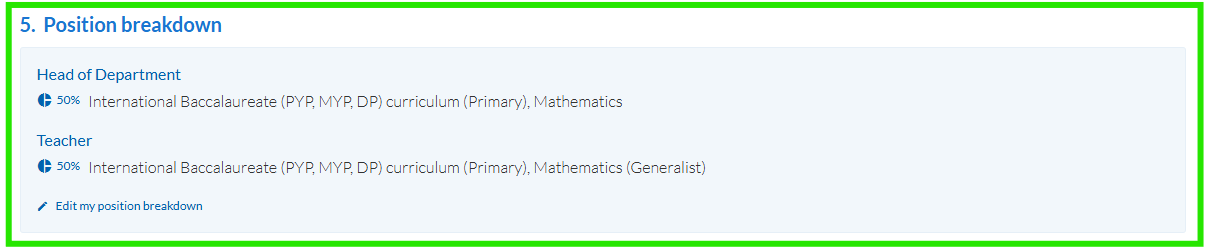
If the job has several roles or is a split position, you can Add a position breakdown to help job seekers understand what's required in this role. For example, you may need to recruit a Maths Teacher who is also a Head of Department 50% of the time.
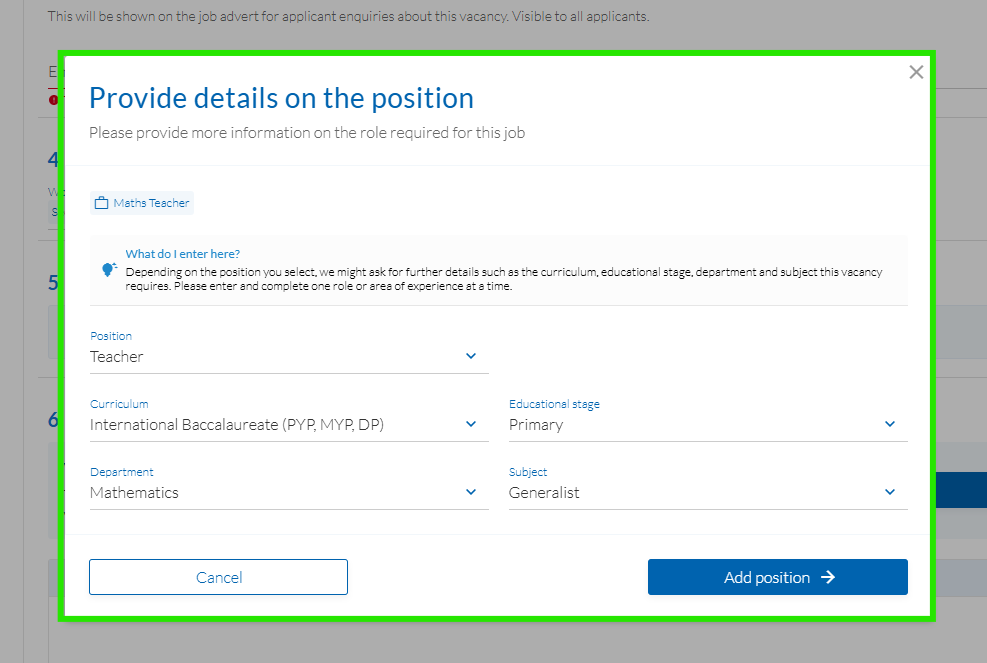
In this instance, you can add one role as a Teacher and another as a Head of Department. For each position breakdown, you must specify which Curriculum, Educational Stage, Department and Subject is relevant to each role.
When you add more than one, weighting must be applied to show what percent of the job will focus on each (see example below).
Create and edit your job description
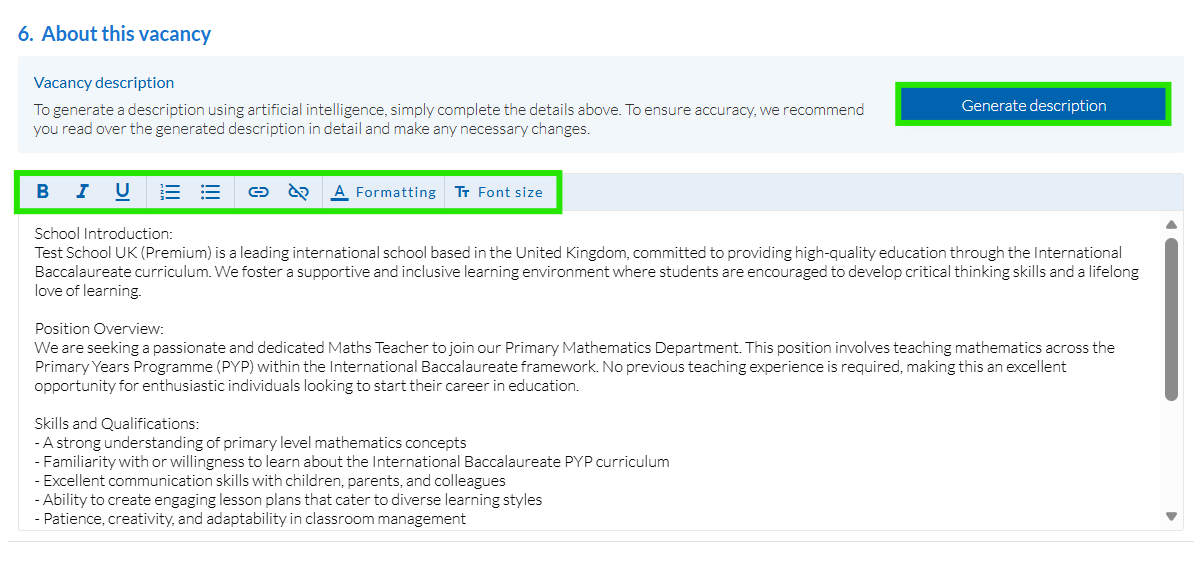
Once your vacancy details are complete, you can automatically generate a job description using AI.
- Generate description: will use the vacancy details you've provided to draft a job description outlining relevant skills, qualifications, values and attributes.
- Edit the job description: review and edit your job description to make sure the summaries and requirements listed are accurate.
- Apply formatting to the job description including headings, bold, italic and underlining, and bullet points.
Add salary range (optional)
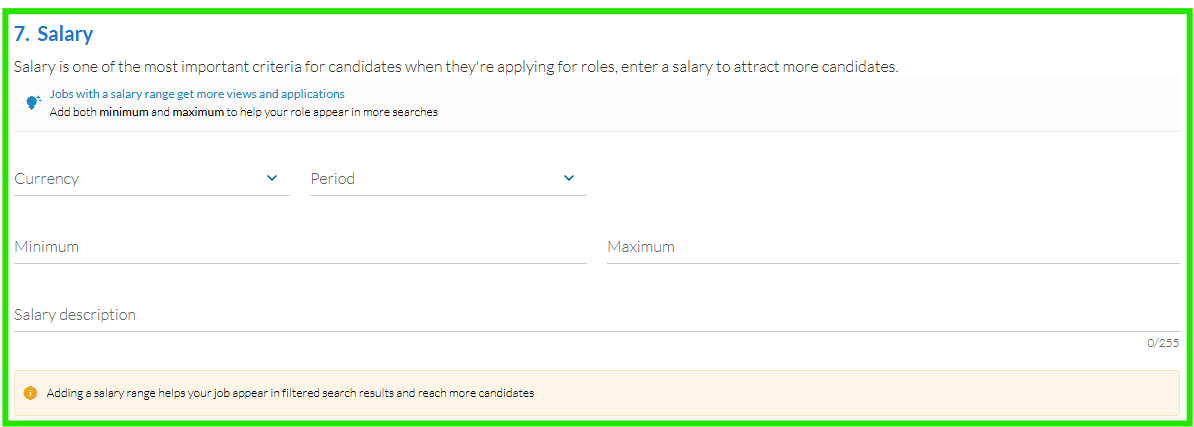
You can choose to add a salary range to attract candidates with expectations that fit your budget. It’s optional, so you can just input the Salary description if salary is negotiable.
Add supporting documents
You can add up to 25MB of documents to your job vacancy to help candidates with their applications.
- Document type: select the type of document you'd want to upload from the dropdown. If you can't see a relevant category, use 'Supporting document'.
- Upload: Select the upload file icon
 to choose the file you want to upload.

Set vacancy start and end dates
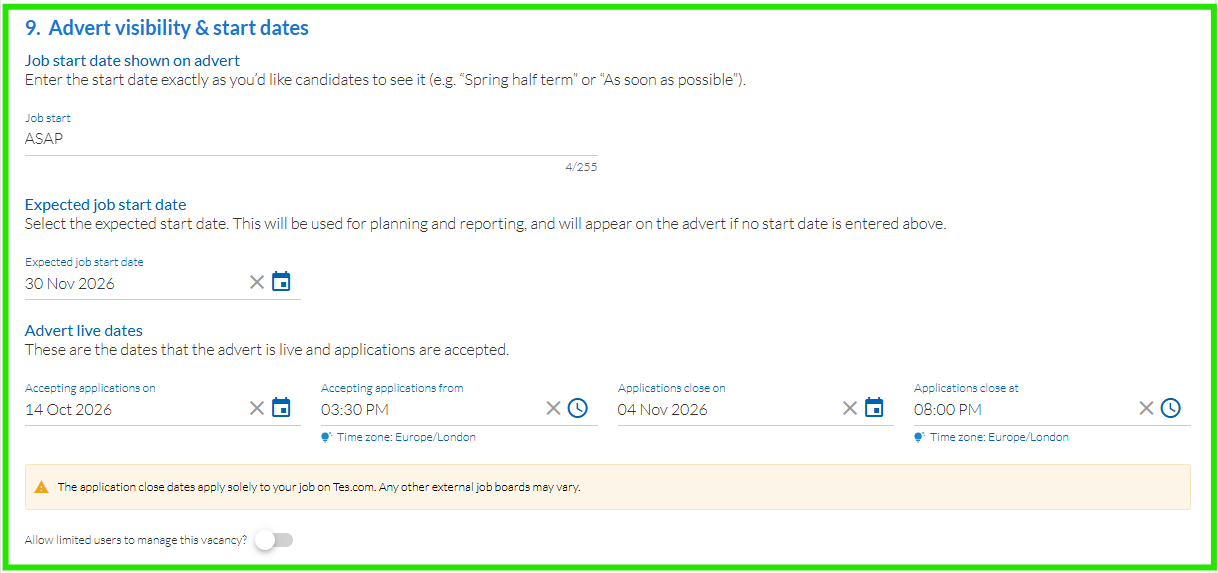
Under Advert visibility & start dates, you can set when you want the job to start and when your vacancy will open and close to control when applications are accepted.
- Job start date: you can add a description to accompany the date the job is expected to start. e.g. Spring term.
- Expected job start date (optional): select the start date if predetermined.
- Advert live dates: select the dates and times you want the job vacancy to be visible on Tes Jobs and applications to open and close.
- Applications close on/at: defines when your job vacancy will close.
- Allow limited users to manage this vacancy: Toggle on this setting if you'd like users with Limited user permissions to view this vacancy.
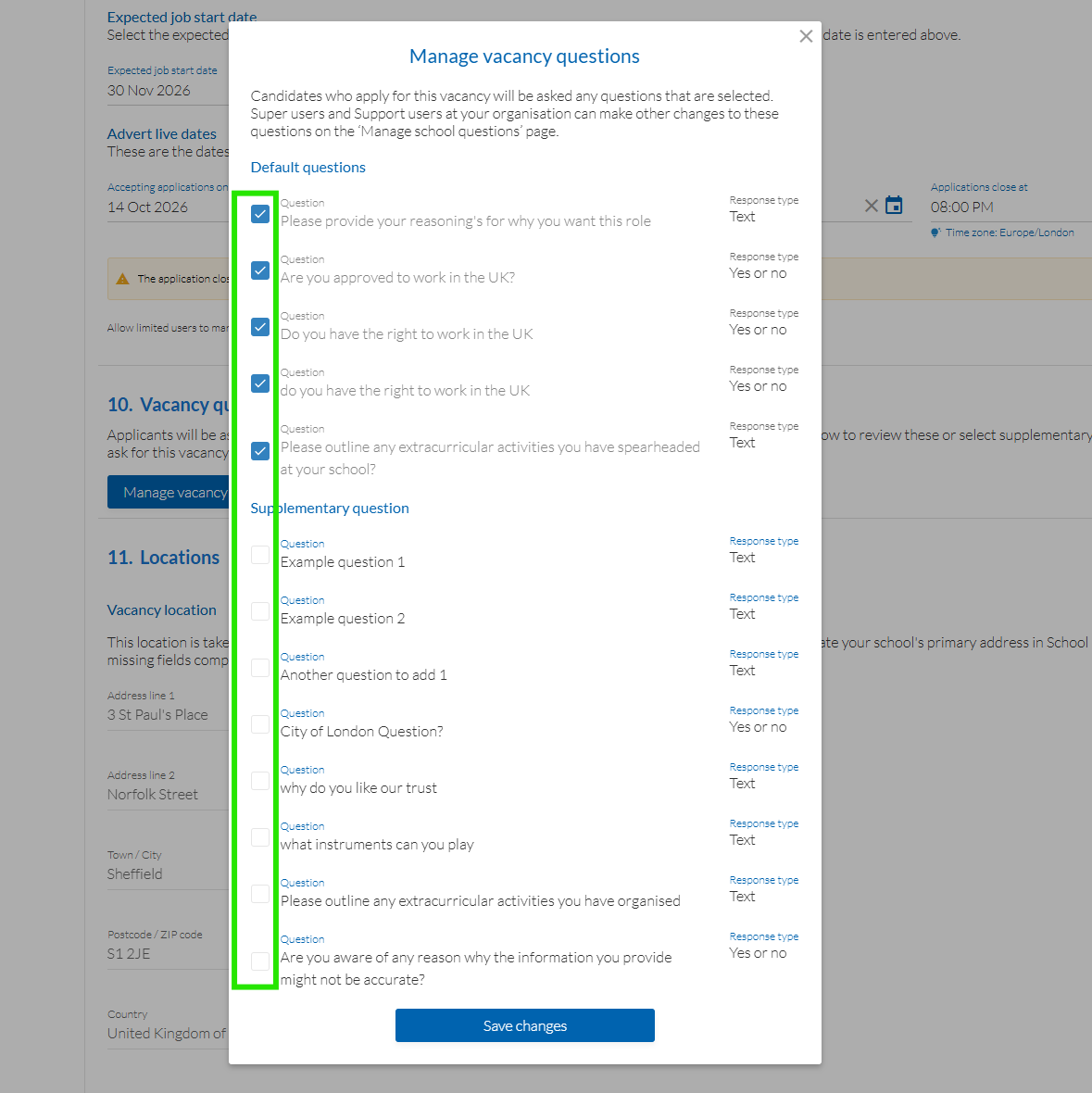
Add vacancy screening questions
You can add custom questions to the job application form to screen applicants against specific role requirements.
- Under Vacancy questions, select Manage vacancy questions.
- You'll see any existing Default and Supplementary questions:
- Default questions: are set by Super users at an account level and apply across all school vacancies.
- Supplementary questions: can be added at a job vacancy level and apply to specific vacancies.
- Select the questions you would like to apply to this vacancy, then Save changes.

Add locations (optional)
Add primary, display and searchable locations to help candidates know where the role is based and improve where it shows up in Tes Jobs search engine.
Create a scorecard to rate applicants (optional)
You can create a scorecard in a vacancy to allow you (and others) to benchmark candidates against your job criteria. This is particularly useful when comparing applications and evaluating their suitability for the role.
You’ll need to create a scorecard before publishing your job.
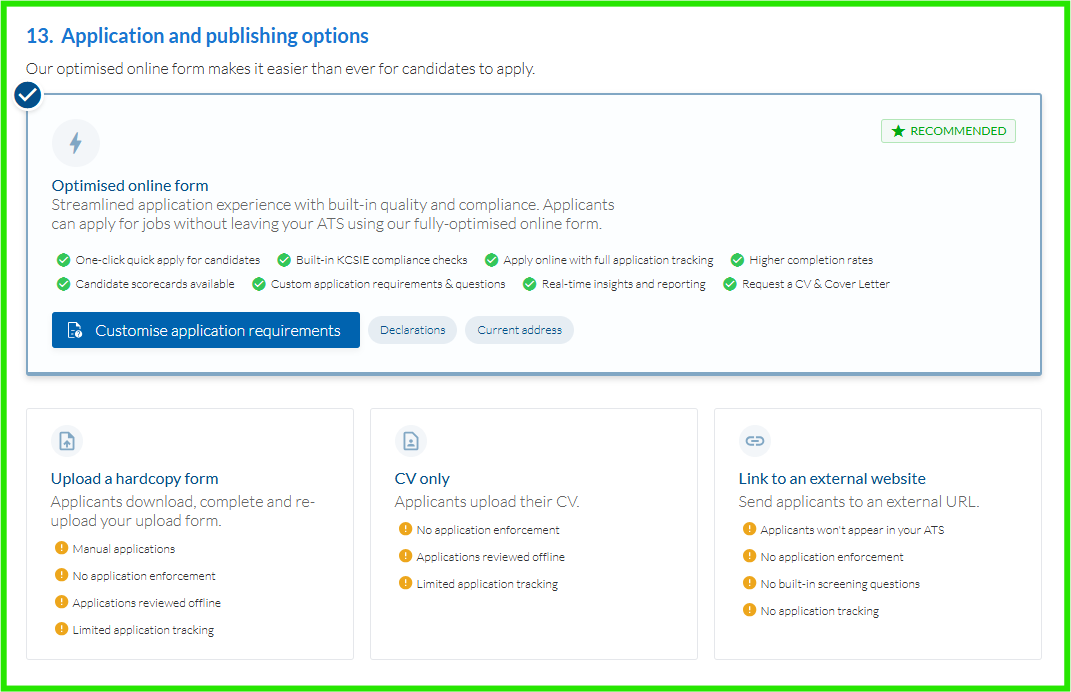
Application and publishing options
Your application type determines which channels candidates can use to submit their application. To make the most of your Staff Management subscription, we recommend using the Optimised online form to fully manage applications within your Application Tracking System.
Here’s an overview of the four application methods available.
- Optimised online form: This allows candidates to search and apply for job vacancies in Tes Jobs using their profile.
- CV only: candidates must upload their CV to complete their application. Enabling this option ensures you’re collecting a complete employment history to identify potential gaps and meet global safeguarding standards.
- Upload a hardcopy form: if your school has a custom hardcopy application form that you want candidates to download and complete.
- Link to an external website: send candidates to your website URL to complete your own application form.
Publishing options
When you publish jobs they automatically post to your Tes Jobs board.
You can also post specific position types to external job boards such as the DfE’s Teaching Vacancies (UK only), LinkedIn and Indeed.
Customise application forms and requirements
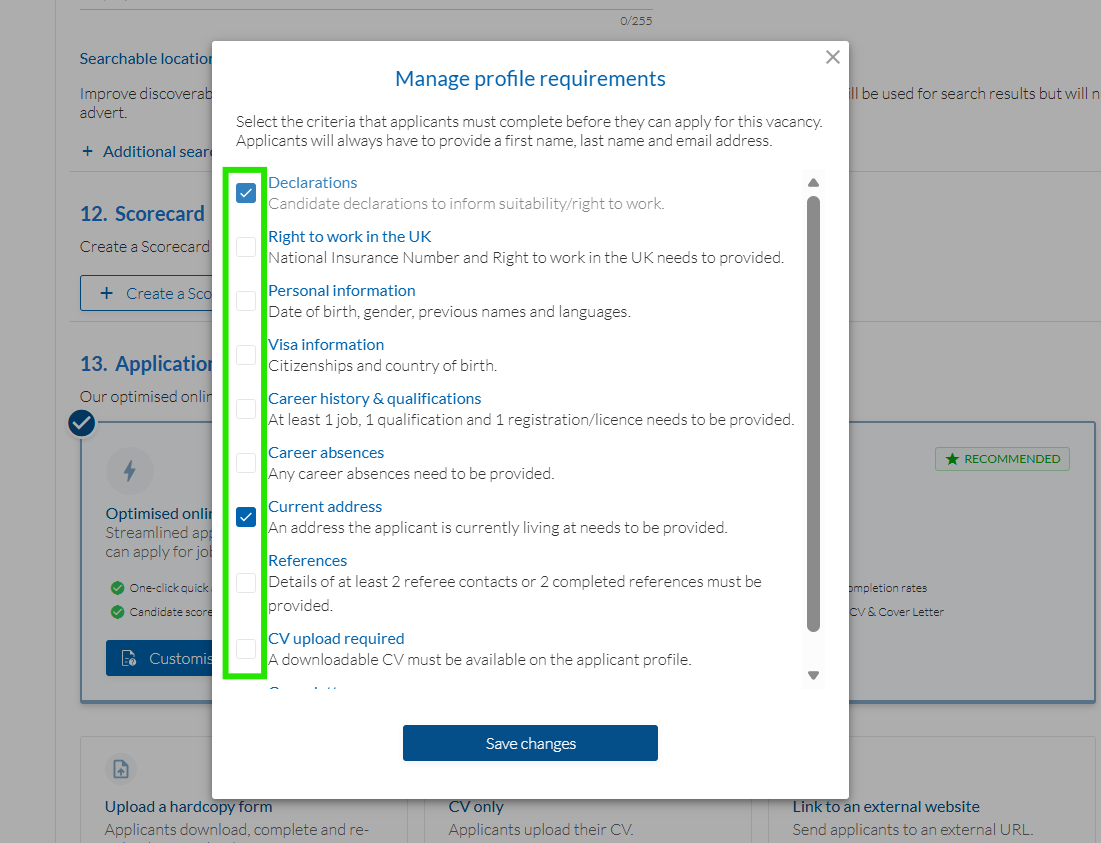
If you choose manage applications within your Tes ATS, you can control what information is required to apply.
- In Application and publishing options, select Customise application requirements.
- Select all the types of information your school needs to collect for recruitment purposes, then Save changes.
Profile requirement | Information collected |
| Declarations | Determining if the candidate has the right to work in your country. |
| Right to work in the UK | National insurance number and Right to Work in the UK. |
Personal information | DOB, gender, previous names and spoken languages. |
Visa information | Citizenships and country of birth. |
Career history and qualifications | Jobs, qualifications and registrations / licences. |
| Career absences | Any career absences need to be declared and provided. |
Current address | Requires a current address. |
References | Details of referees or completed references. |
- If you've chosen for candidates to apply via your own application form or website, continue to the next step.
Set your recruitment pathway
Choose if you want to include 6 or 8 steps in your recruitment pathway.
The main differences are:
- 8-step pathway: You can make Longlists of promising candidates, Schedule interviews and document reference checks or send a Pre-employment letter before finalising recruitment.
- 6-step pathway: Fast track recruitment with the condensed version (excluding Longlists and Pre-employment checks).
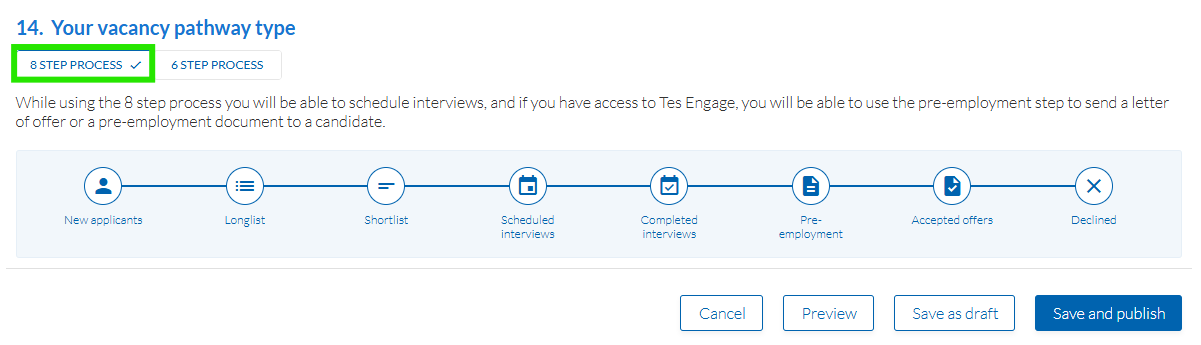
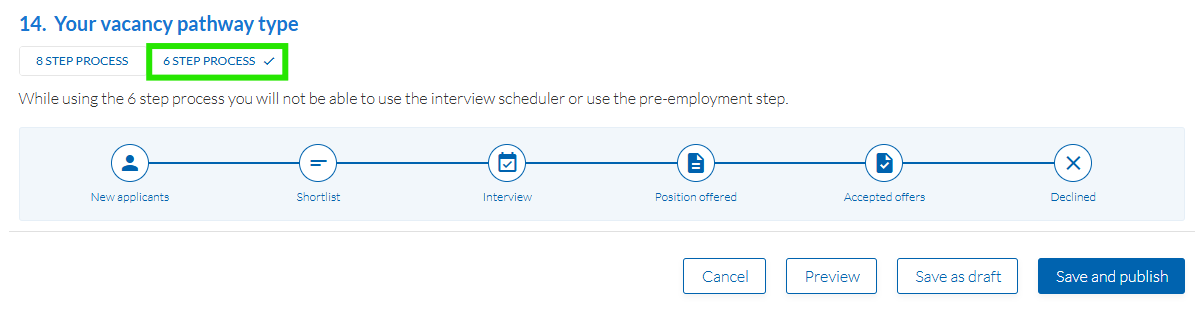
If you're ready to save and publish your job to Tes Jobs, select Save and publish. If not, Save as draft and you can update and post it later.
Once your job is posted, you can copy a link in Connect and share it with prospective candidates.
Was this article helpful?
That’s Great!
Thank you for your feedback
Sorry! We couldn't be helpful
Thank you for your feedback
Feedback sent
We appreciate your effort and will try to fix the article