When you publish a job vacancy it automatically will post to the Tes Jobs board, allowing candidates to search and apply.
With a Staff Management subscription, your school can also post specific positions to external job boards available to you, like LinkedIn or the UK Department of Education's Teaching Vacancies website.
Before you can post jobs to external job boards, an Administrator with Super User permissions will need to integrate or connect them with your Recruitment Application Tracking System (ATS).
ON THIS PAGE
- What job boards or websites can I post Tes jobs to?
- Posting jobs to external job boards
- How to integrate external job boards
What job boards or websites can I post Tes jobs to?
Where you can post your Tes vacancies will depend on what type of ATS subscription your school has and what roles and permissions are assigned to you (see table below).
All England-based state-funded schools can post job vacancies from their Tes ATS to the DfE Teaching Vacancies website if eligible—check your eligibility. If your school isn’t registered, you can request an account.
| Subscription type | Role / user permissions | Where you can post jobs externally |
| Basic | Limited, users and super users | DfE Teaching Vacancies (England only) |
| Enhanced | Limited, users and super users | DfE Teaching Vacancies, LinkedIn, Indeed |
| Premium | Limited, users and super users | DfE Teaching Vacancies, LinkedIn, Indeed |
Posting jobs to external job boards
You can post job vacancies with specific position types to external job boards that are connected to your ATS (by a Super User or System Administrator).
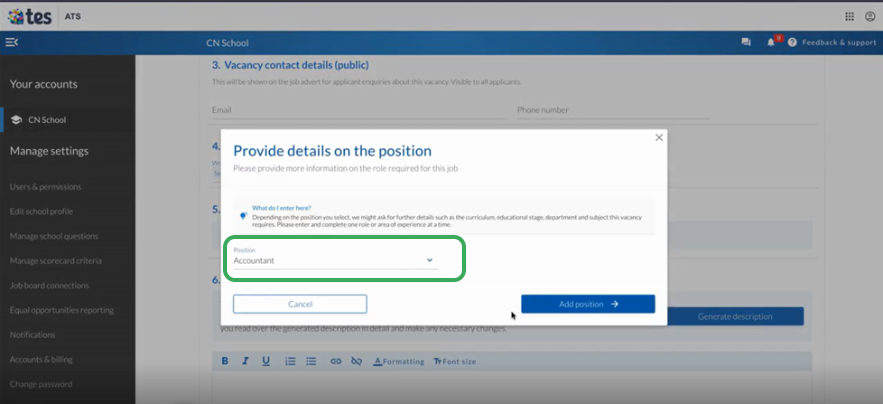
Follow these steps to add an external job board to your vacancy. This can be done when creating or updating the vacancy before it’s published.
- Go to Connect.
- Select the draft job you’d like to post externally or Create a vacancy if you don't have one yet.
- If you’ve opened an existing draft, select the cog icon to open the job settings, then Edit.
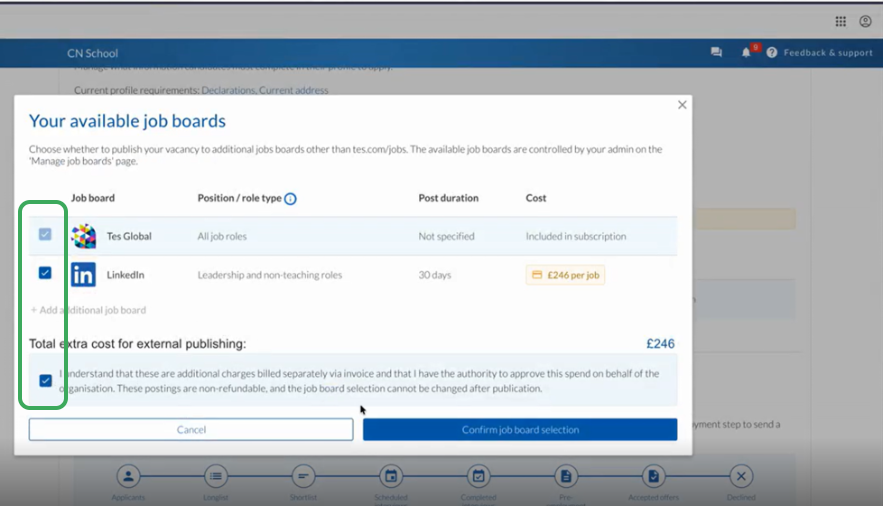
- Under Application and publishing options, you can choose which jobs to post your job to (when published) by selecting Add or remove job boards.
- If you’re happy to accept any costs charged by the external provider (LinkedIn and Indeed only), select Confirm job board selection.
- If your job vacancy is ready to post, select Save and publish. Otherwise, Save as draft.
Now your job is posted to Tes Jobs and/or external job board/s for candidates to search and apply.
How to integrate external job boards
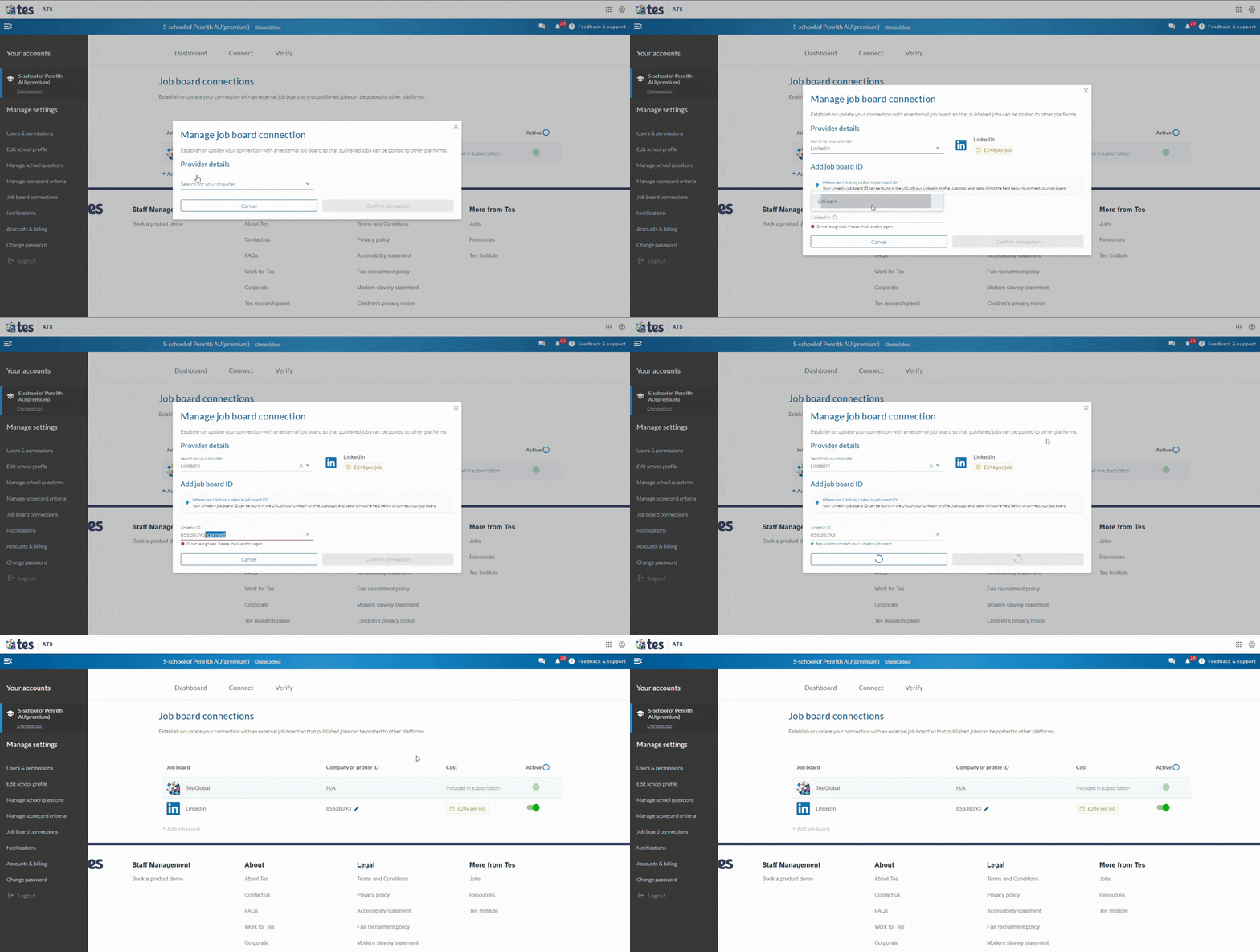
Administrators with Super User permissions can connect external job boards to your ATS by following these steps.
1. In the main left-hand menu, go to Manage settings > Job board connections.
2. Select Add job board.
3. Search for and select your external job board provider by name.
4. Enter the company or profile ID for your jobs board. It’s usually a unique number or name attached to your official page and is often located in your account's URL.
5. Select Confirm connection.
Was this article helpful?
That’s Great!
Thank you for your feedback
Sorry! We couldn't be helpful
Thank you for your feedback
Feedback sent
We appreciate your effort and will try to fix the article