This guide will show you how to use our managed recruitment service, available to Premium subscribers
Tes Staff Management offers premium subscribers the opportunity to access managed recruitment. This is where Tes manages your recruitment process from posting a job to submitting candidates for interview.
As part of our managed recruitment service, we:
- Post an anonymised version of your advert on our recruitment page to attract a wider pool of candidates.
- Search our candidate database and invite suitable individuals to apply.
- Review incoming applications and forward those we consider a strong match.
You can request 5 roles every 6 months, 10 roles across the year.
How to turn on managed recruitment
After logging in to your ATS:
1. Expand your main menu by selecting the hamburger icon , then go to Connect.
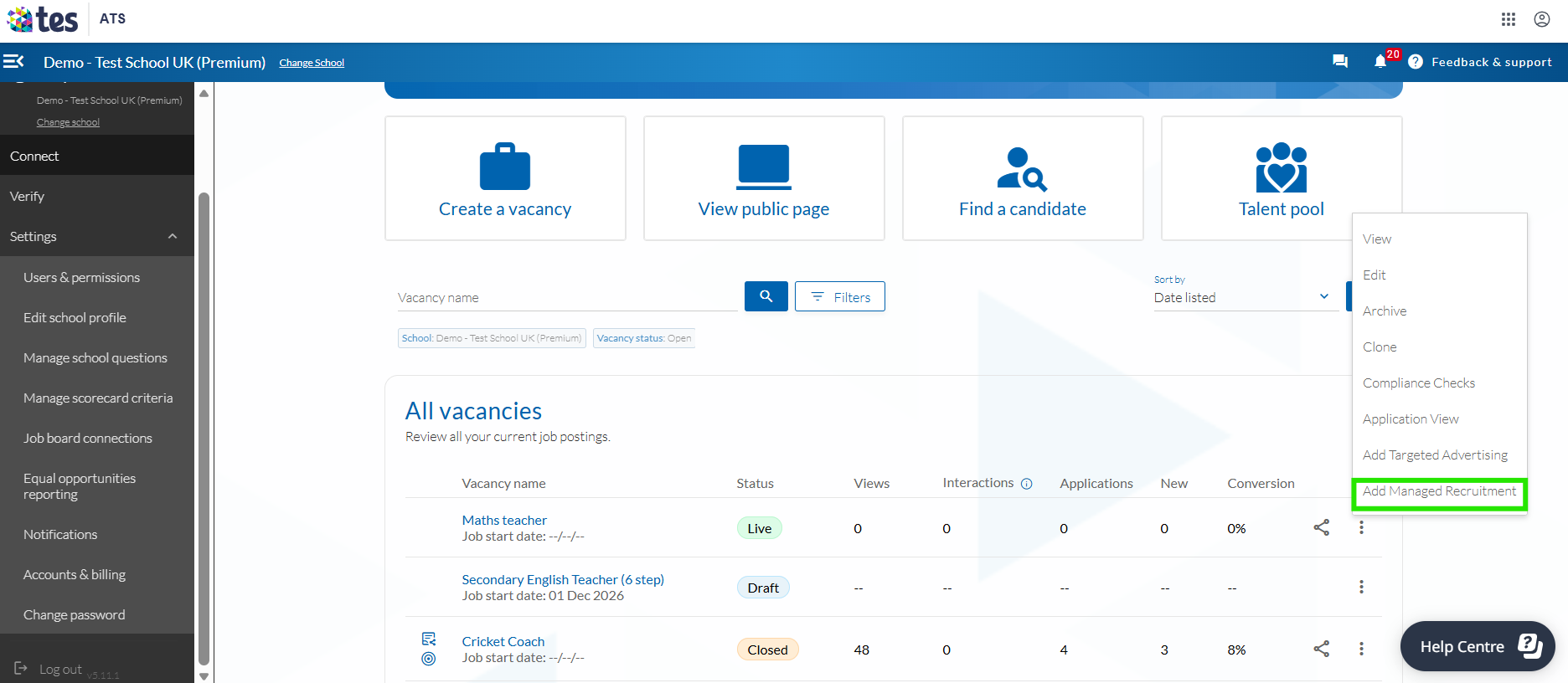
2. From your list of open vacancies, press the three dots on the vacancy you would like to support.
3. Select ‘Add Managed Recruitment’.
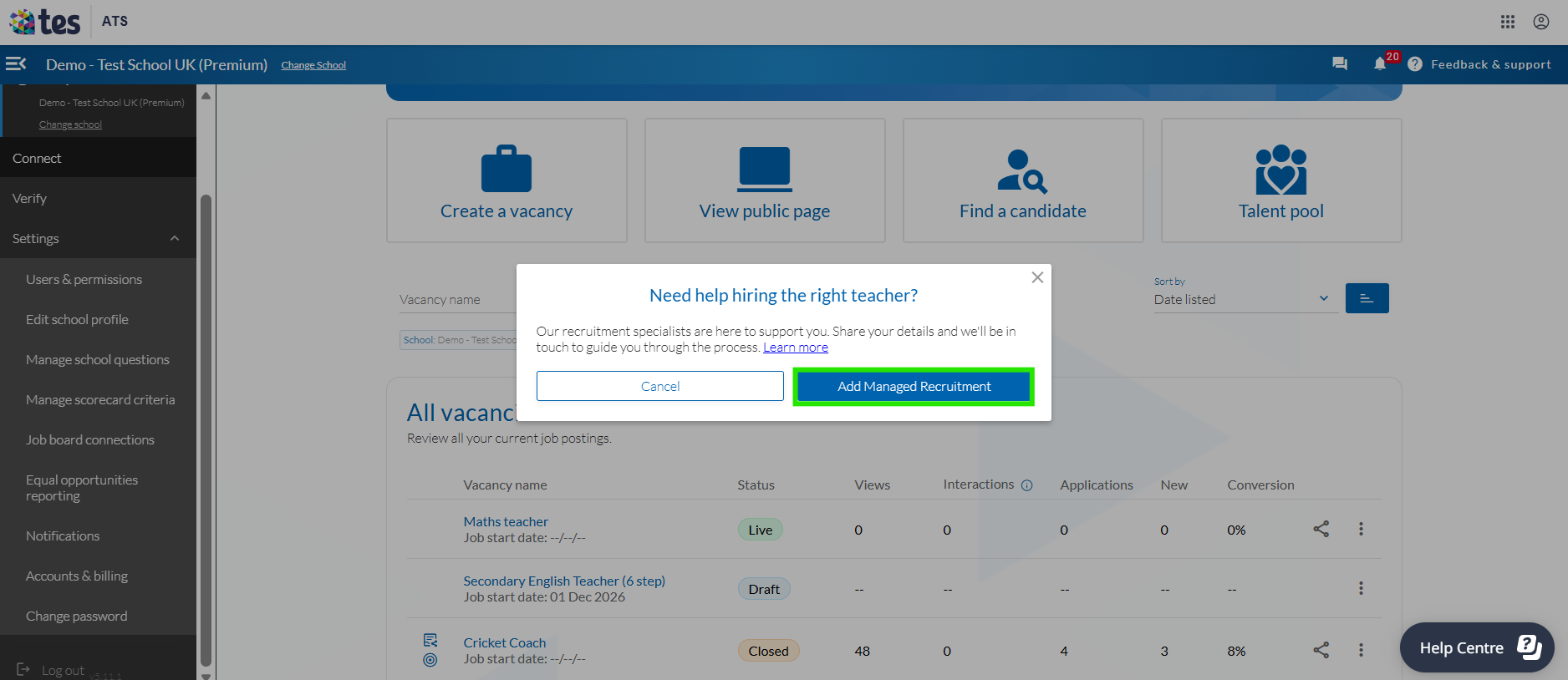
4. Follow the prompt in the pop up and select ‘Add Managed Recruitment’
5. Enter your contact details. Press ‘Submit contact details’
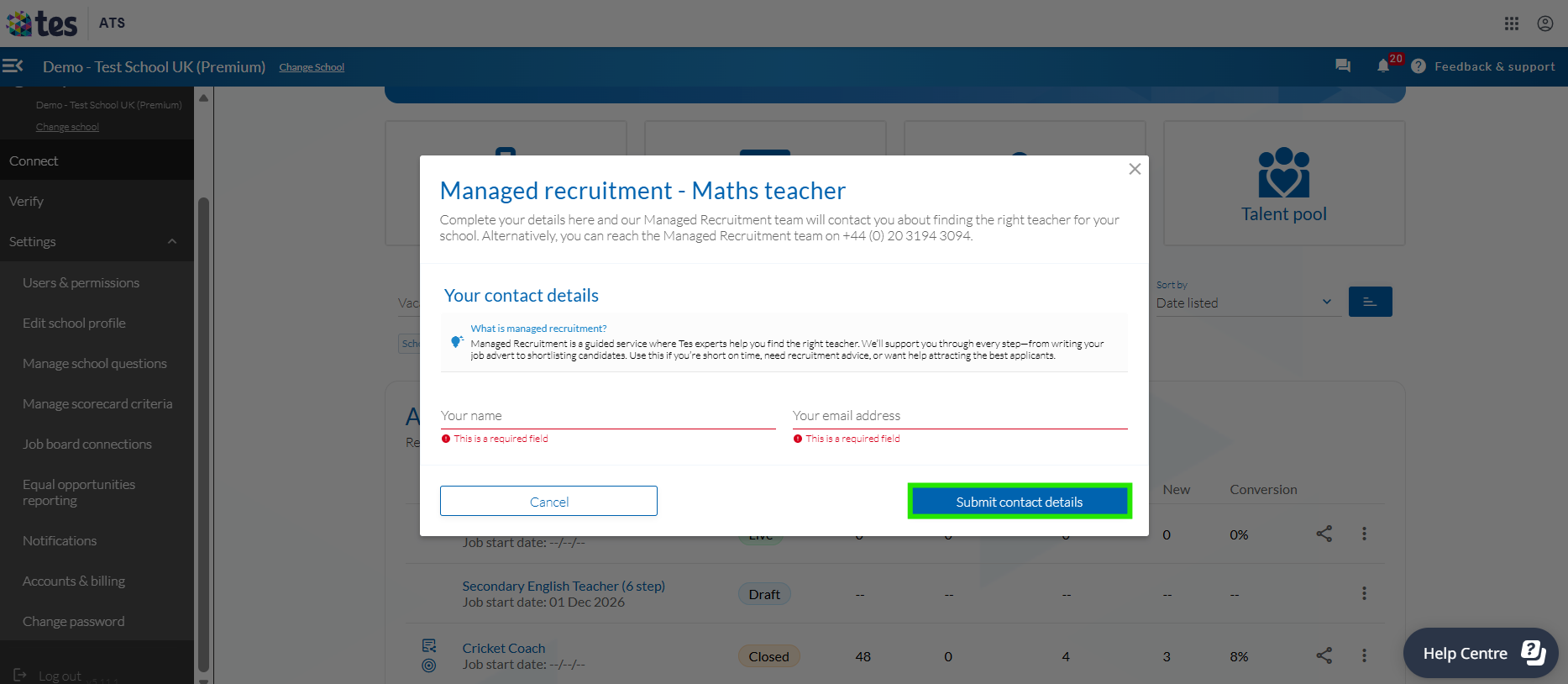
6. A member of the team will be in touch with you shortly to better understand your requirements.
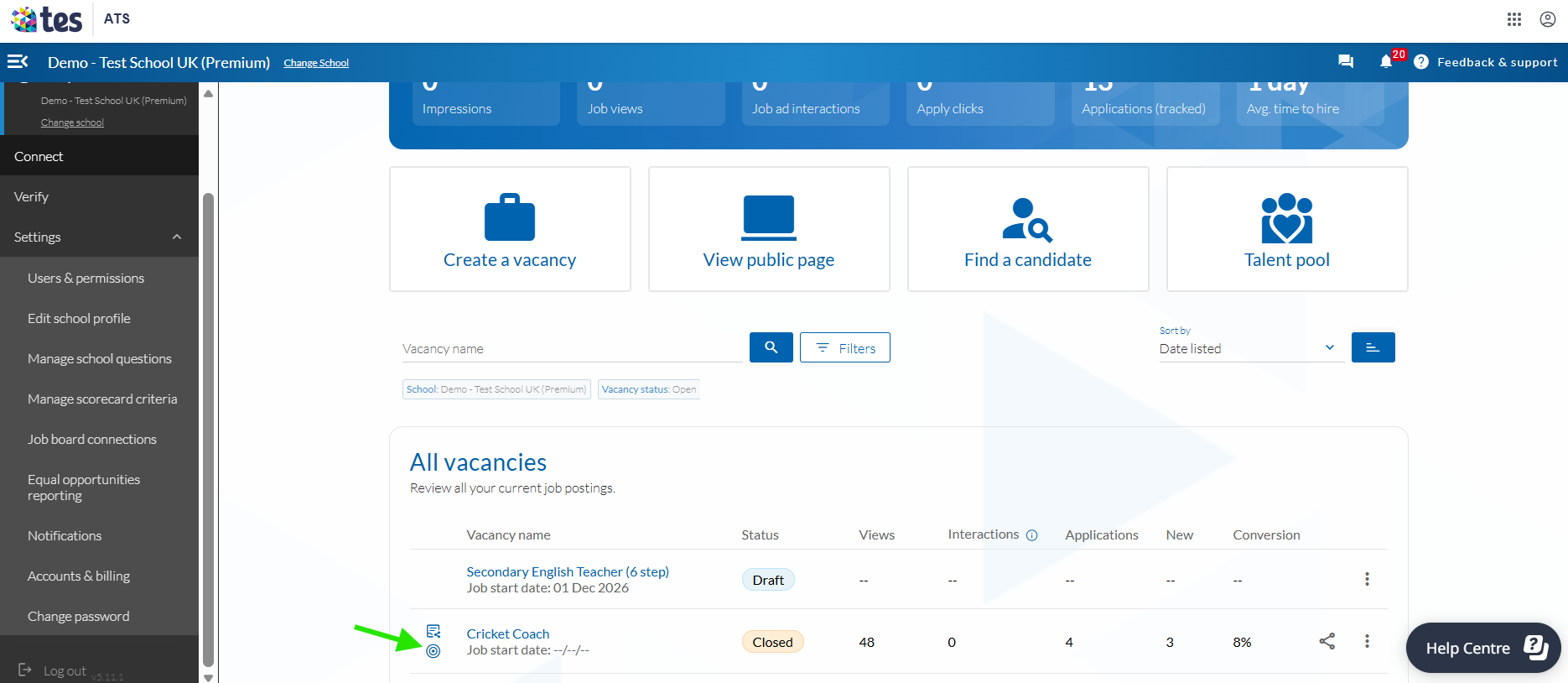
7. Your vacancies that are using our Managed Recruitment service will have the circle icon next to them.
Was this article helpful?
That’s Great!
Thank you for your feedback
Sorry! We couldn't be helpful
Thank you for your feedback
Feedback sent
We appreciate your effort and will try to fix the article