This guide will show you how to invite your staff into Develop, allowing them to access their professional development and safeguarding courses.
Let's show your colleagues what great courses your school now has access to! To do this, you can start in the My team area of Develop.
The Upload users dashboard in Develop allows named administrators to add, update and suspend users from the Develop platform in six simple steps:
- Select the template you want to use and download it
- Populate the template with users and save it
- Upload the template to the dashboard where it will be validated and any mistakes highlighted for correction
- Correct any errors and re-upload the template
- Your template will be put into a queue and the Tes onboarding team will check and upload it into Develop
- You will be notified by email when the upload is complete
To access the Upload users dashboard, once you have logged in to the system, click into the My team button and the Upload users tile will appear.
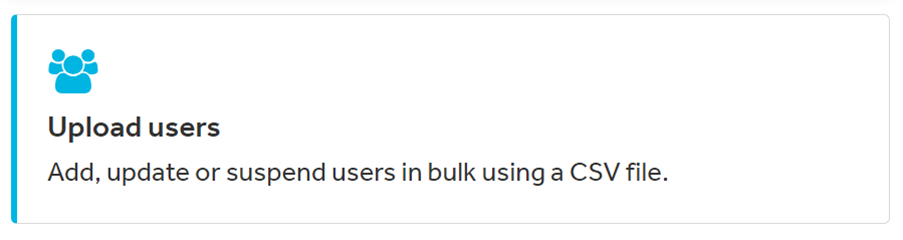
Click the Start new upload button. and begin to customise your template.
- Choose which school to add your users to. If you are a MAT you should see a list of all schools in your group.
- Choose what type of data to add:
- Add new users – this will add new or additional users to the selected school
- Modify users – this will update existing users in the selected school
- Delete users – this will delete users from the selected school
Please note that you can only choose one type of data at a time.
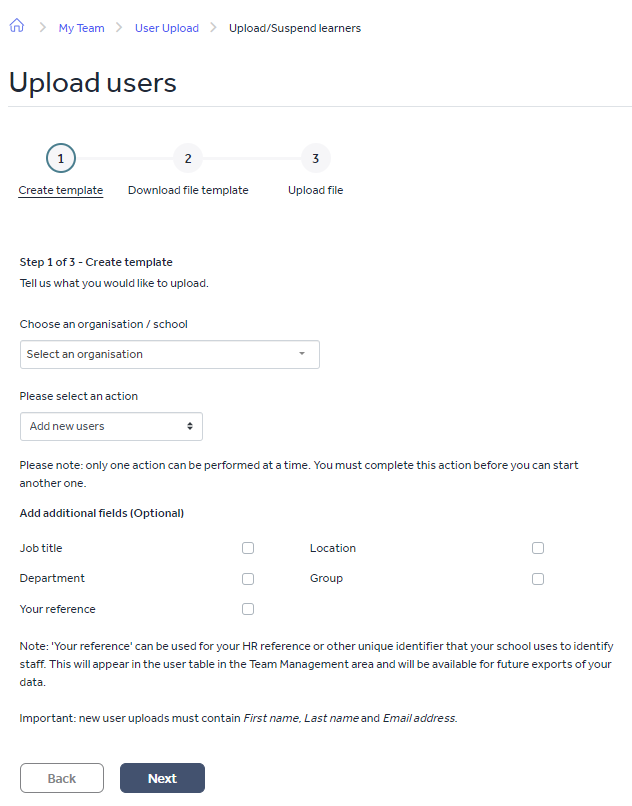
You can also select additional fields to feature as another section on your CSV to fill in. These groupings are titled: Job title, Location, Department, Group and Your reference (a unique identifier your school uses for HR purposes).
Select Next to go to the Download file template page.
When you are in here, click the Download file template button.
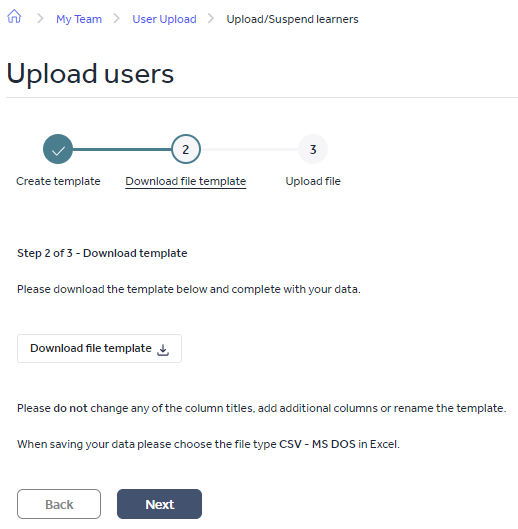
Once this CSV (excel spreadsheet) has been downloaded onto your computer, you can populate this with the relevant staff members' details. Please note: if you rename the document or any of the columns, the file may not upload.
When you are happy that the CSV is complete, click Next to go to the Upload file page. Upload this CSV into the upload area by dragging and dropping the document.
Once your CSV has been uploaded, click Upload file. The system will now be validated to ensure the data is correct. If there are errors, this will be highlighted. If this happens to you, amend the details that have been highlighted and re-upload the CSV file.
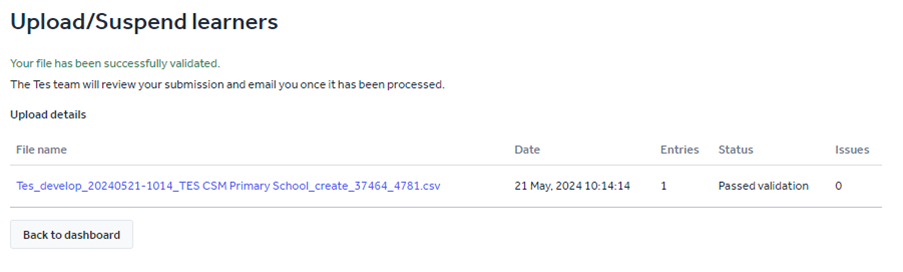
If the data in the file is correct, the status will show as Passed validation.
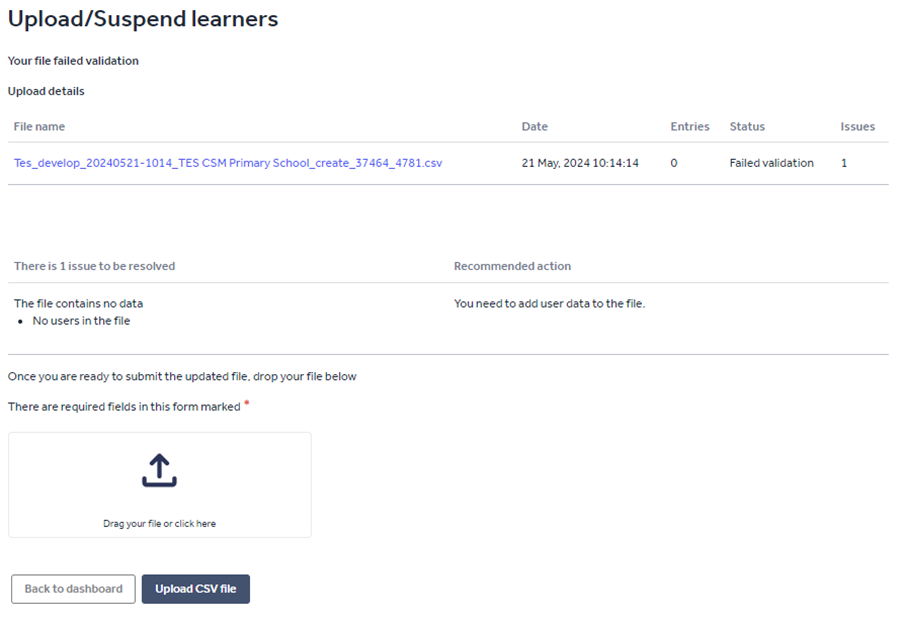
If further errors are detected, these should be corrected and the updated file uploaded in the same way as on the previous page.
After this has passed, the onboarding team at Tes will process your upload and you will be notified by email when this is complete.
Being completed means your staff will have received a welcome email to log in and access their safeguarding courses.
Help and support
Can’t find the answer you’re looking for? We’re here to support you every step of the way.
Help Centre | Contact us |
Our knowledge base has everything you need to know about using Staff Management, including videos, help guides and more.
| Contact us anytime from Mon to Fri, 8:00am-17:00 (UK time).
Call: +44 020 3194 3050 |
Was this article helpful?
That’s Great!
Thank you for your feedback
Sorry! We couldn't be helpful
Thank you for your feedback
Feedback sent
We appreciate your effort and will try to fix the article