This guide will take you through how you can instantly report on your staff's course progress and learner details.
After you have run a Study plan, it is a good idea to look at the reports on it. These reports can look at who has and hasn't completed the courses you assigned, and even look at when your colleagues last logged in!
When you log in to Develop, head to the My team tile. In the second half of the page, you will see the area titled Reporting with six tiles beneath it.
From left to right:
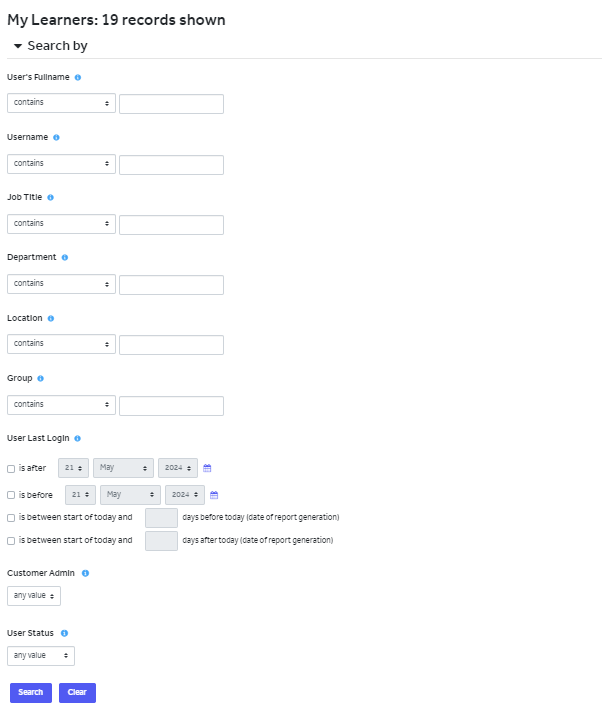
My learners
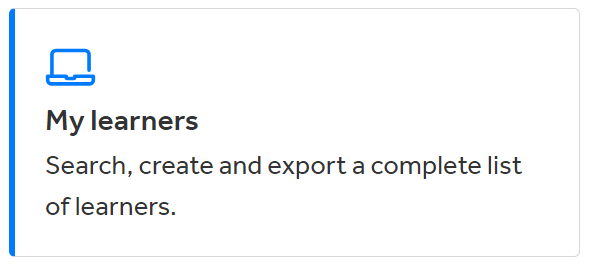
This reporting tab is used to review the learners that are assigned to your school's account in Develop. You are able to track how active your staff are by looking at the last log in of staff and export these details for reviewing.
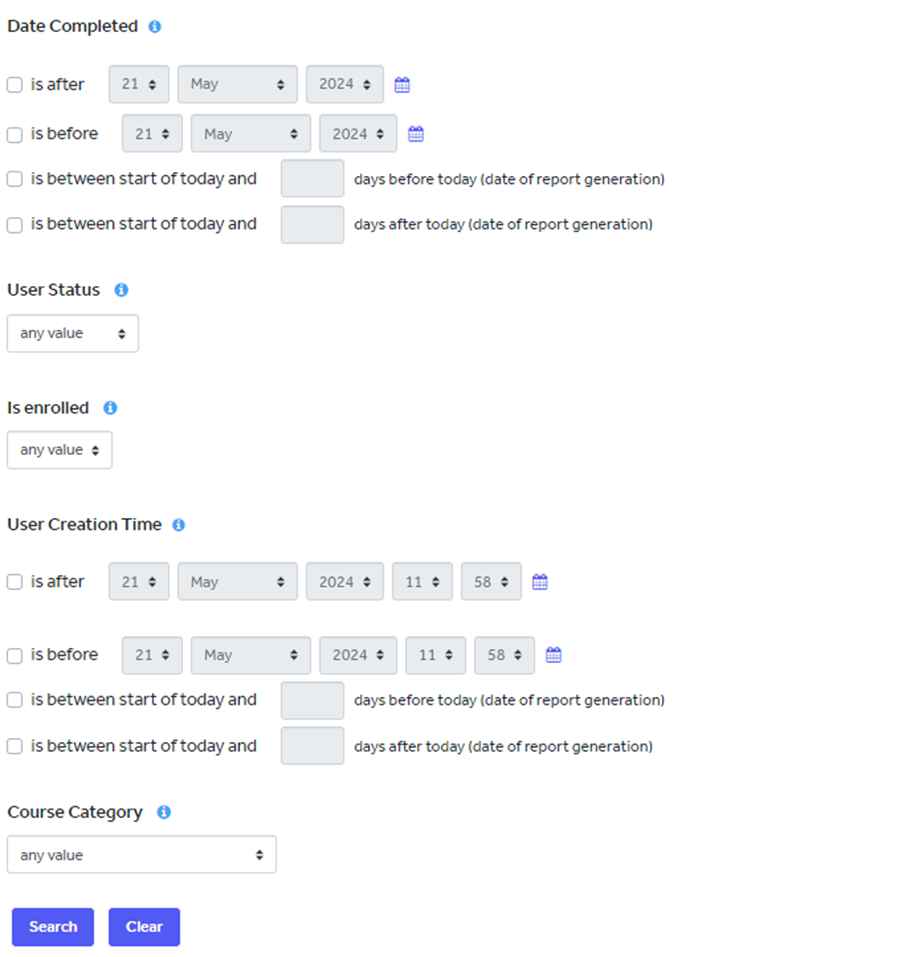
Learner status report
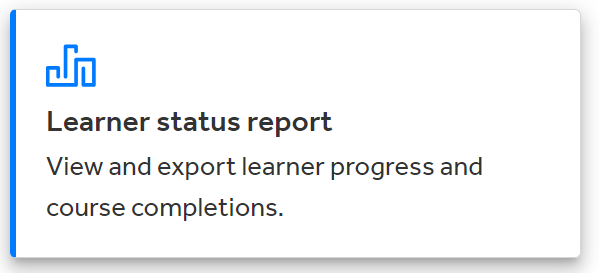
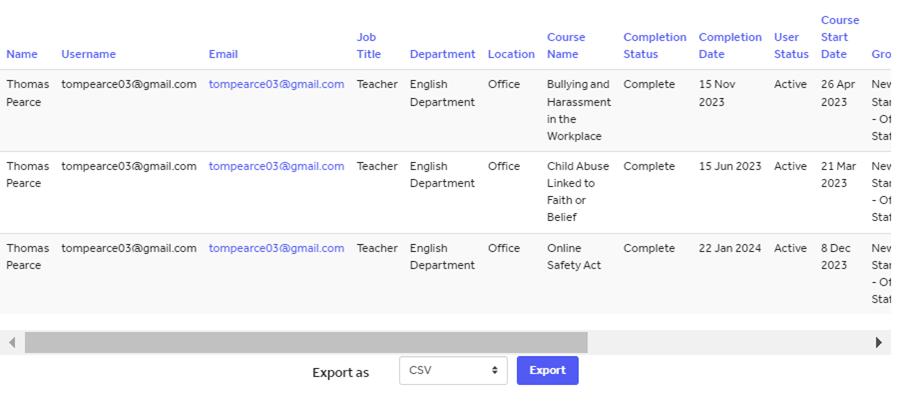
This report pulls the data from all courses and all your staff to see what progress has been made. You can search for specific people, courses, dates and completion statuses to export reports.
Past completions
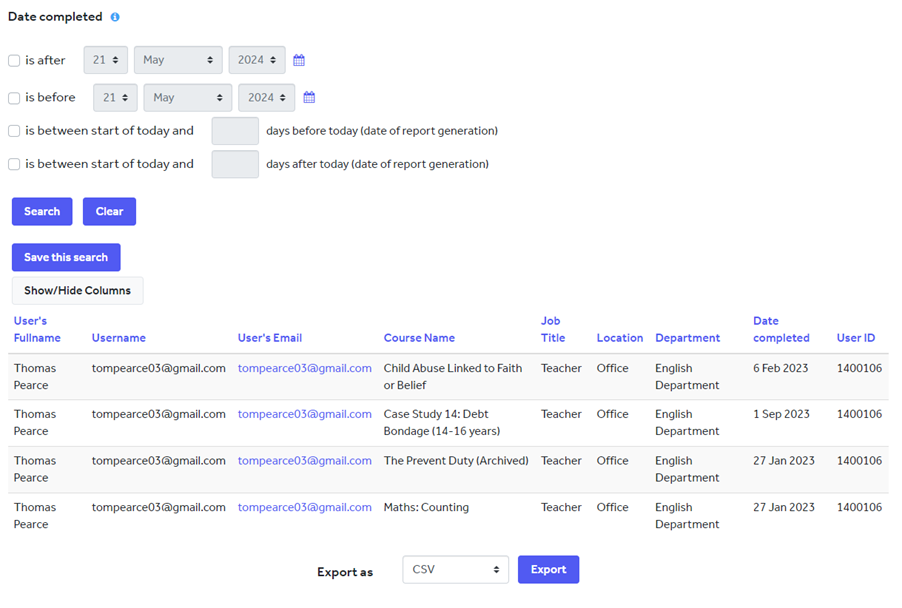
This report looks at courses that have been completed by your staff before the course was reset or archived.
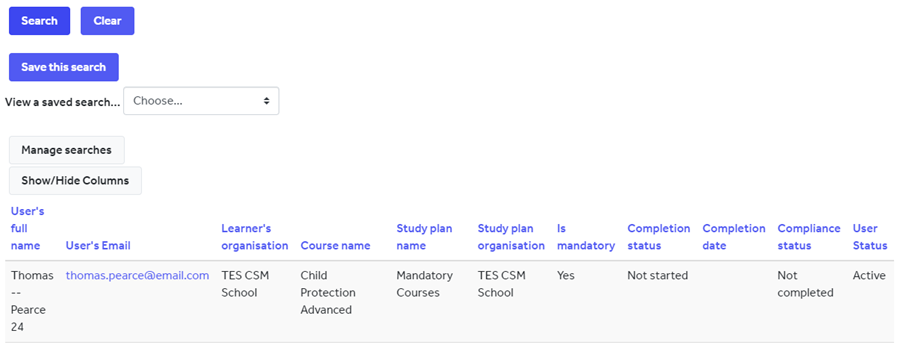
Study plan report
Once you have assigned courses using Study plans, you can get a breakdown of the progress that staff are making with the courses that have been set.
Scheduled reports
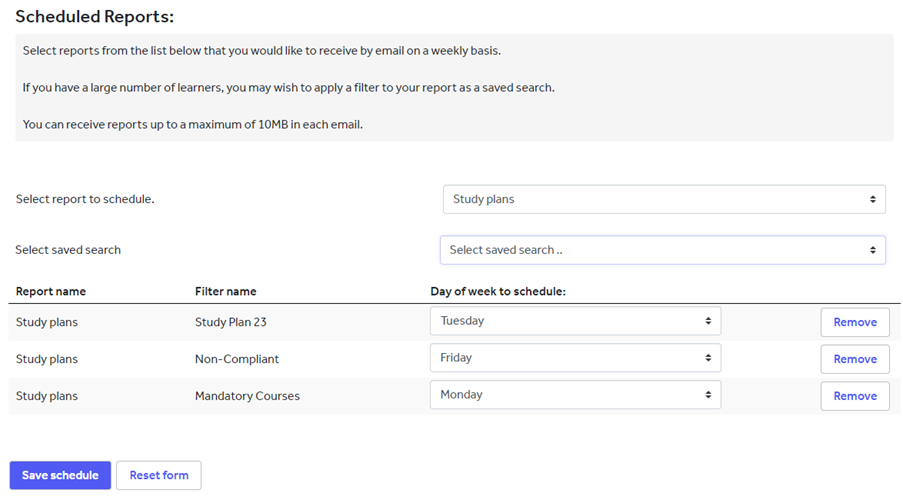
Using this tab, you can set up reports to send out to your email automatically, on a weekly basis. These are taken from searches you have saved in each report.
Reporting dashboard
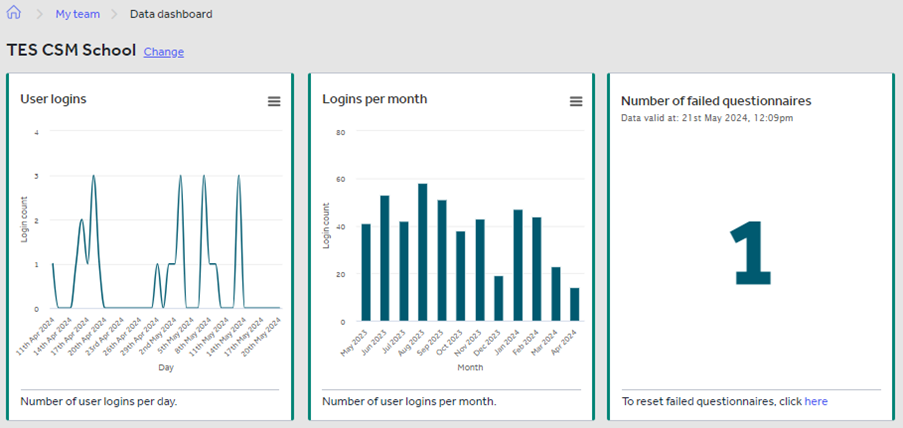
Within this report, there are graphs made from statistics taken from your school's account, all of which can be exported as images or PDFs.
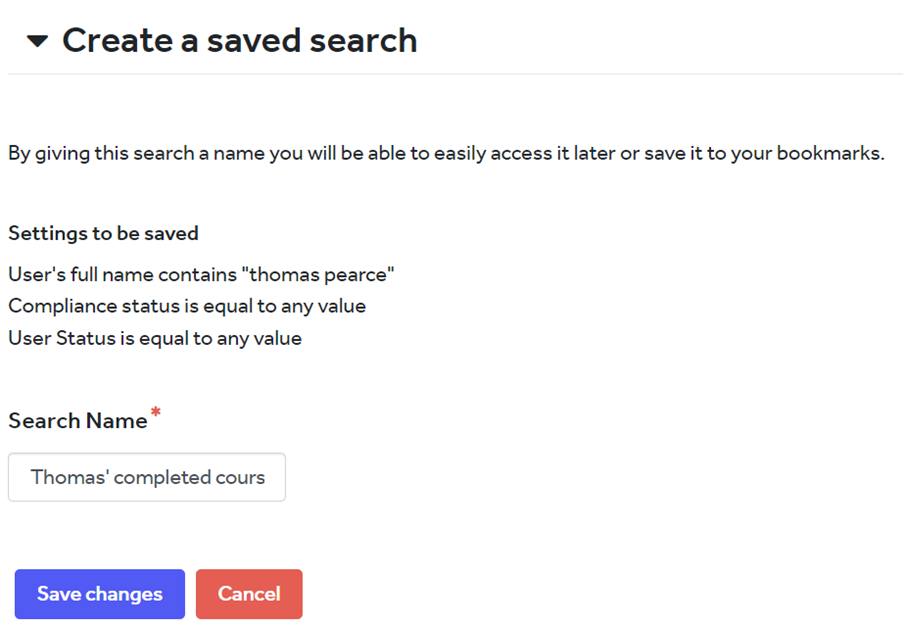
When you are using these reporting functions, you are able to use the search bars and filters to find the reports you want to show. Once you have searched for these, you are able to save the search so you can use that saved search at a later date (rather than changing the filters). These are also used for the Scheduled reports that you can create.
At the bottom of the reporting pages (excluding the scheduled reports and reporting dashboard) there is a button to export the results you have searched for. You can export these as a Excel, CSV and a PDF.
Help and support
Can’t find the answer you’re looking for? We’re here to support you every step of the way.
Help Centre | Contact us |
Our knowledge base has everything you need to know about using Staff Management, including videos, help guides and more.
| Contact us anytime from Mon to Fri, 8:00am-17:00 (UK time).
Call: +44 020 3194 3050 |
Was this article helpful?
That’s Great!
Thank you for your feedback
Sorry! We couldn't be helpful
Thank you for your feedback
Feedback sent
We appreciate your effort and will try to fix the article