This guide will take you through the different reporting elements of the dashboard in Staff Pulse.
The Dashboard within Staff Pulse is where all main reports can be found, reviewed and exported. To access this, click on the Pulse dashboard within the Staff Pulse tab.
At the top of the page, you will see:
- The results of the question "Overall, I would recommend the school as a place to work to my friends", giving you a good indication of how your staff are feeling
- The Response rate - where you can view the trend of responses and the response rate of each segment
- The Survey frequency

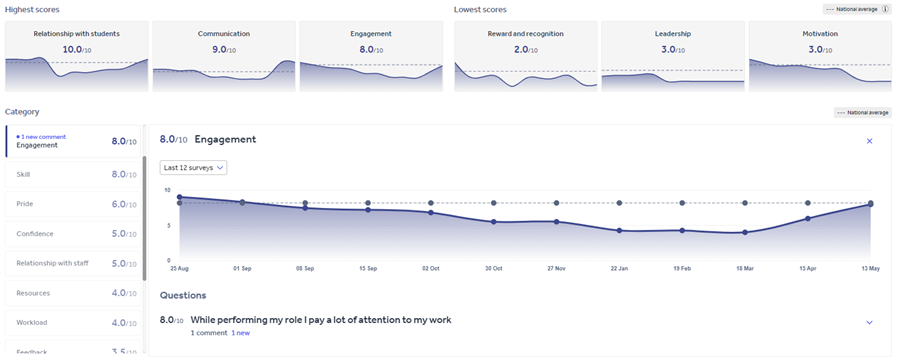
Underneath these boxes, you can look at the in-depth reports on all the categories. If you click on one of these categories, you will see a more detailed overview of the category selected. You will see a trend graph showing that category's performance over time against the average score.
You can also look at the scores of each question within that category and reply to any comments that were left by anonymous staff.
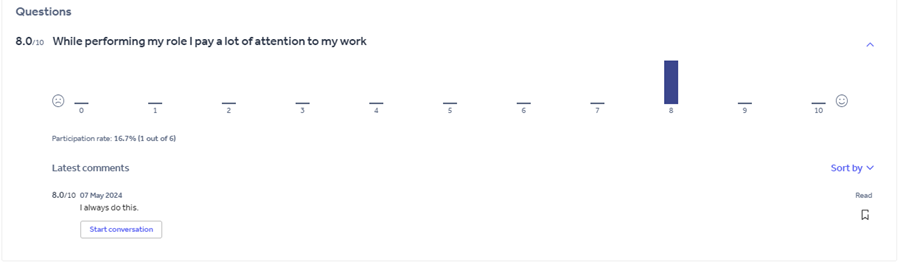
To find your Custom questions data, head to the bottom of the page to look at the scores and comments for each question.
To export the survey data, go to the top of the page and click on the Download CSV button. This will give you an Excel spreadsheet of all the data received from your staff from the last 52 surveys. Or, click Print to download a PDF of the Dashboard and any categories selected.
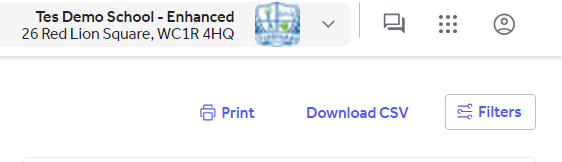
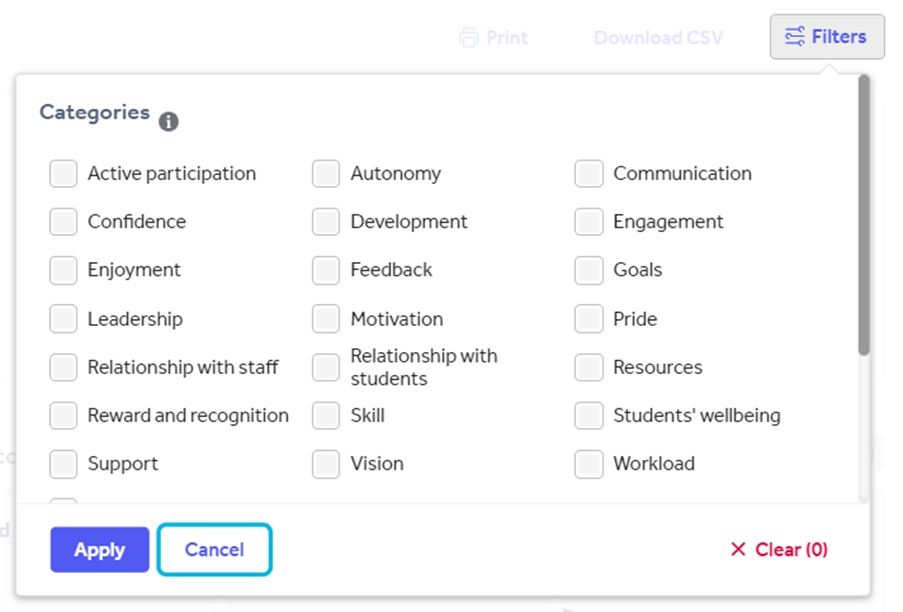
If you would like to filter into a specific segment and/or category, select the Filter button in the top right and choose what you would like to be presented.
Help and support
Can’t find the answer you’re looking for? We’re here to support you every step of the way.
Help Centre | Contact us |
Our knowledge base has everything you need to know about using Staff Management, including videos, help guides and more.
| Contact us anytime from Mon to Fri, 8:00am-17:00 (UK time).
Call: +44 020 3194 3050 |
Was this article helpful?
That’s Great!
Thank you for your feedback
Sorry! We couldn't be helpful
Thank you for your feedback
Feedback sent
We appreciate your effort and will try to fix the article